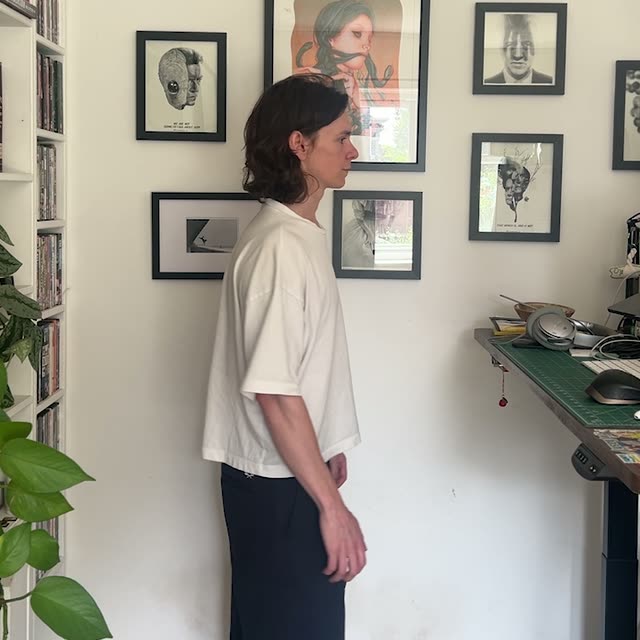
يرشدك هذا الدليل في ComfyUI إلى سير عمل مركّز لتبديل الملابس يعتمد على عقدة GeminiVideoOmni. تقوم بتحميل فيديو لشخص عبر LoadVideo (Your Footage) وصورة واحدة للزي عبر LoadImage (Outfit Reference). تأخذ عقدة GeminiVideoOmni هذه المدخلات مع تعليمات بلغة بسيطة (تُمرَّر عبر PrimitiveNode) لتطبيق الزي من الصورة المرجعية على الشخص المتحرك في المقطع، مع الحفاظ على الهوية والحركة وتأطير الكاميرا والخلفية الأصلية. يتم إخراج النتيجة عبر SaveVideo.
تقنيًا، يكيّف سير العمل نموذجًا توليديًا واعيًا بالفيديو بناءً على إطارات المصدر وصورة الزي المرجعية. يوجّه فيديو المصدر البنية والحركة بحيث تبقى الوجوه والأيدي والبيئة مستقرة، بينما يوجّه المرجع مظهر الملابس عبر الإطارات لتحقيق اتساق زمني. توفر عقد MarkdownNote في المخطط إرشادات داخلية ولا تؤثر على المعالجة. ومع عدد قليل من العقد ودون أقنعة يدوية أو rotoscoping، يعد هذا الإعداد مناسبًا للتجارب الافتراضية السريعة للأزياء، وتصوّر أفكار الموضة، ومعاينات التنسيق.
API
استخدم سير العمل هذا من الكود
كل سير عمل في Comfy هو رسم بياني بصيغة JSON. الحمولة أدناه هي هذا سير العمل بالضبط كما يشغله ComfyUI — يمكنك جلبه من الرابط، حفظه في نظام التحكم بالإصدارات، أو تحميله في ComfyUI وتشغيله عقدة تلو الأخرى.
شغّله من TypeScript أو Python باستخدام Comfy SDK. نفس الكود يعمل على Comfy Cloud أو ComfyUI الذي تستضيفه بنفسك — فقط عنوان URL الأساسي يتغير.
// Install (beta)
npm i @comfyorg/sdk

// Run this workflow (TypeScript)
import { Comfy } from "@comfyorg/sdk";

const client = new Comfy({ apiKey: "comfyui-..." });
const wf = await client.workflows.fromFile("workflow_api.json");
const job = await client.run(wf);
await job.getOutputs("<output-node-id>")[0].toFile("output.png");
يأخذ SDK سير العمل بصيغة API: افتح هذا سير العمل في ComfyUI واستخدم ملف → تصدير سير العمل (API).
يتطلب الوصول إلى Comfy Cloud API خطة تتضمن مفتاح API.
الأسئلة الشائعة


















