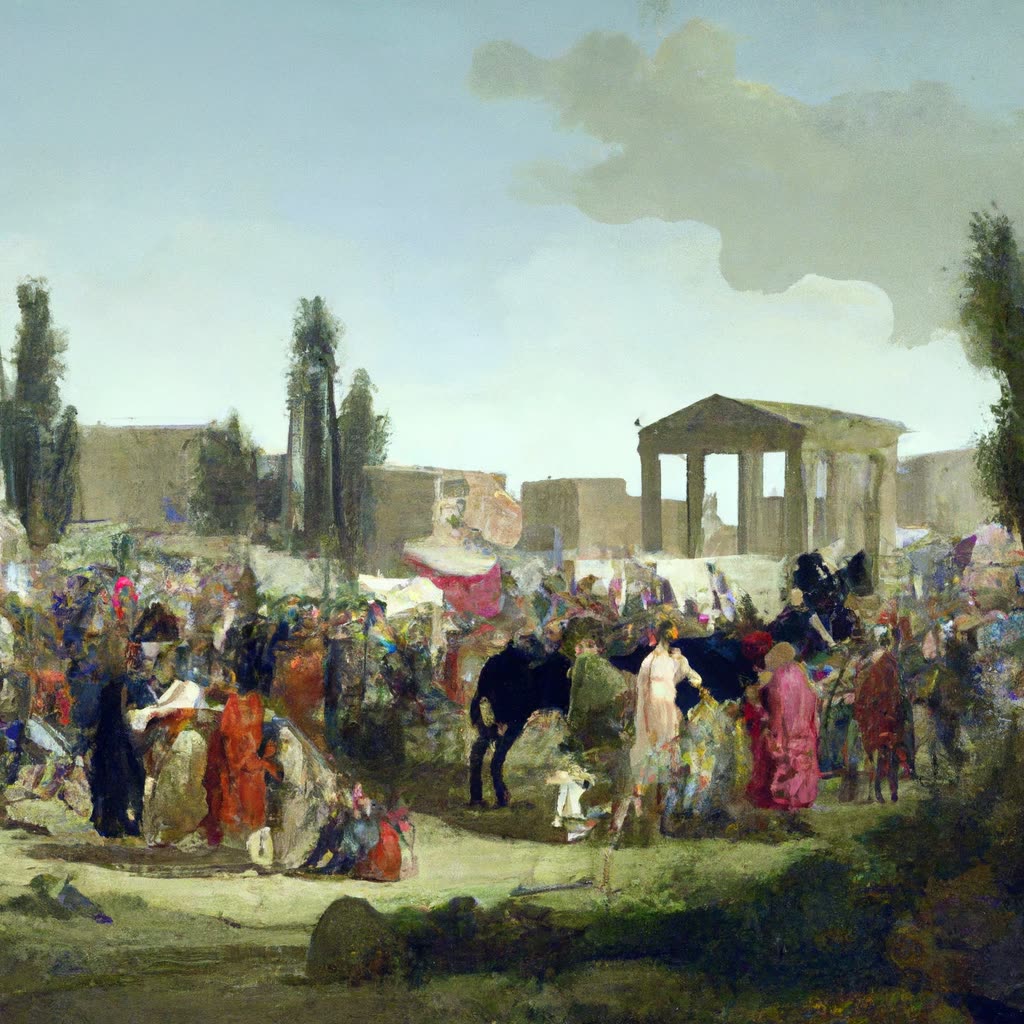
This ComfyUI workflow leverages the OpenAI Dall-E 2 API to transform textual prompts into vivid images. By utilizing the OpenAIDalle2 node, the workflow connects directly to the Dall-E 2 API, which is renowned for its ability to generate high-quality images based on detailed text descriptions. The process begins with the user inputting a text prompt, which is then sent to the Dall-E 2 API. The API processes this input and returns an image that visually represents the prompt. The resulting image is then captured by the SaveImage node, allowing users to save the generated image to their local system.
This workflow is particularly useful for users who need to quickly generate visual content from textual ideas without the need for complex local processing or graphics hardware. It simplifies the process of accessing advanced AI capabilities by handling API interactions and image storage seamlessly. The integration of OpenAI's model ensures high-quality outputs, making it a valuable tool for content creators, marketers, and educators looking to enhance their projects with AI-generated imagery.
API
Use this workflow from code
Every Comfy workflow is a JSON graph. The payload below is this workflow, exactly as ComfyUI runs it — fetch it from the URL, keep it in version control, or load it in ComfyUI and run it node by node.
Run it from TypeScript or Python with the Comfy SDK. The same code targets Comfy Cloud or a ComfyUI you host yourself — only the base URL changes.
// Install (beta)
npm i @comfyorg/sdk

// Run this workflow (TypeScript)
import { Comfy } from "@comfyorg/sdk";

const client = new Comfy({ apiKey: "comfyui-..." });
const wf = await client.workflows.fromFile("workflow_api.json");
const job = await client.run(wf);
await job.getOutputs("<output-node-id>")[0].toFile("output.png");
The SDK takes a workflow in API format: open this workflow in ComfyUI and use File → Export Workflow (API).
Comfy Cloud API access requires a plan with an API key.
FAQ


















