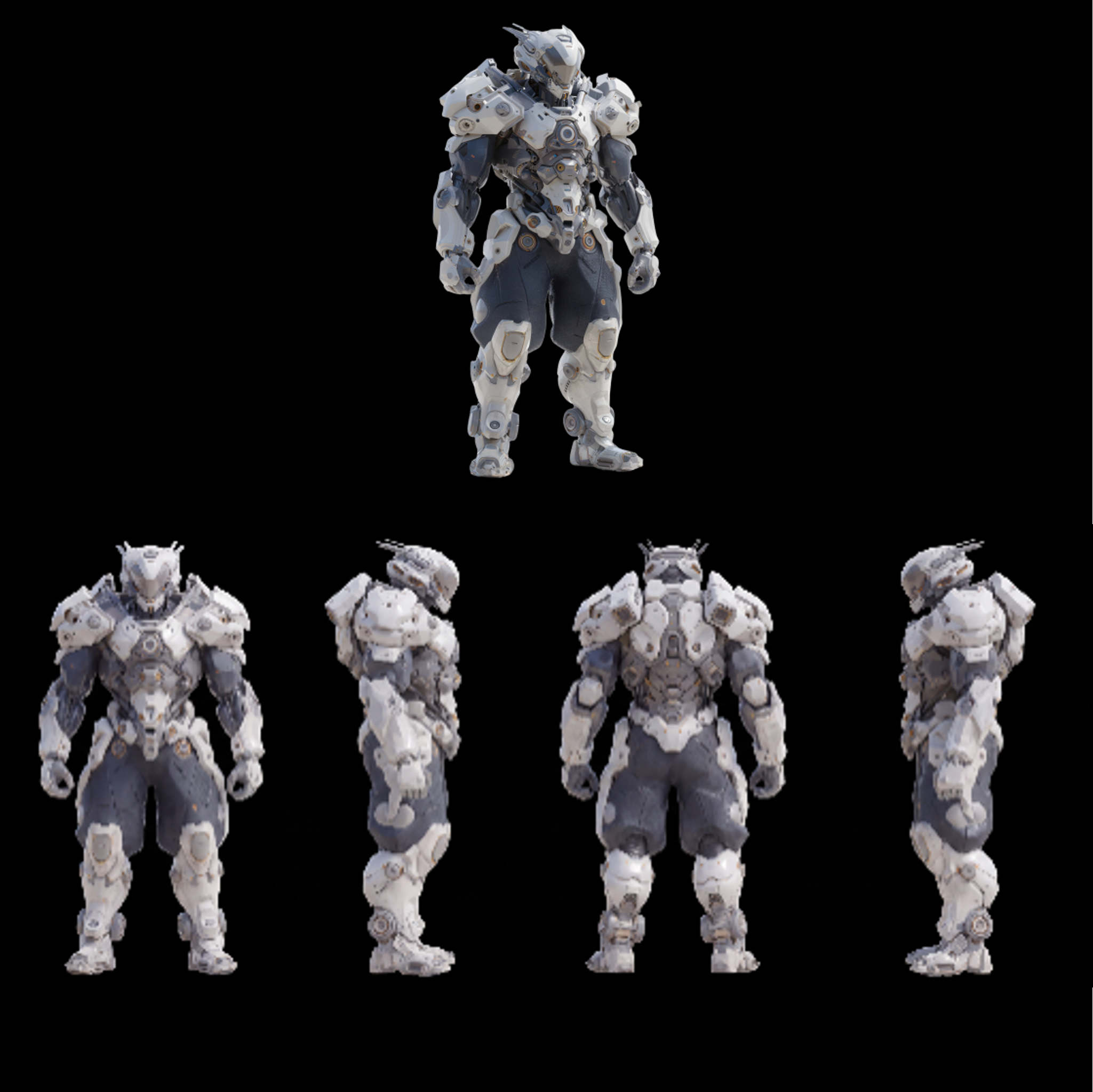
This workflow generates a clean, orthographic character turnaround (front, side, and back) from a single reference image—ideal for sci‑fi mechs and armor designs. It starts with LoadImage to bring in a front orthographic reference (a sample white_mech_front_ortho.png is included). That image is then passed to GeminiImage2Node, which calls a Google Generative image API and uses your text instructions plus the reference to synthesize additional angles while preserving key features like silhouette, plate layout, decals, and color scheme. SaveImageAdvanced writes each view to disk with predictable filenames so you can assemble them into a final sheet in your design tool. A MarkdownNote in the graph provides inline guidance and prompt tips.
Technically, consistency across views is encouraged by conditioning GeminiImage2Node with the same reference image and carefully worded prompts (e.g., “orthographic side view of the same mech as the reference; match plating, helmet, and markings; no perspective; white background”). Because this template relies on an external API rather than local checkpoints, it’s quick to set up—no model downloads are required—making it a practical tool for concept artists and product designers who need fast, multi‑view explorations of a single design.
API
Usa este flujo de trabajo desde código
Cada flujo de trabajo de Comfy es un grafo JSON. El siguiente payload es este flujo de trabajo, exactamente como lo ejecuta ComfyUI: descárgalo desde la URL, guárdalo en control de versiones o cárgalo en ComfyUI y ejecútalo nodo por nodo.
Ejecuta desde TypeScript o Python con el Comfy SDK. El mismo código funciona en Comfy Cloud o en un ComfyUI propio: solo cambia la URL base.
// Install (beta)
npm i @comfyorg/sdk

// Run this workflow (TypeScript)
import { Comfy } from "@comfyorg/sdk";

const client = new Comfy({ apiKey: "comfyui-..." });
const wf = await client.workflows.fromFile("workflow_api.json");
const job = await client.run(wf);
await job.getOutputs("<output-node-id>")[0].toFile("output.png");
El SDK utiliza un flujo de trabajo en formato API: abre este flujo de trabajo en ComfyUI y usa Archivo → Exportar flujo de trabajo (API).
El acceso a la API de Comfy Cloud requiere un plan con clave API.


















