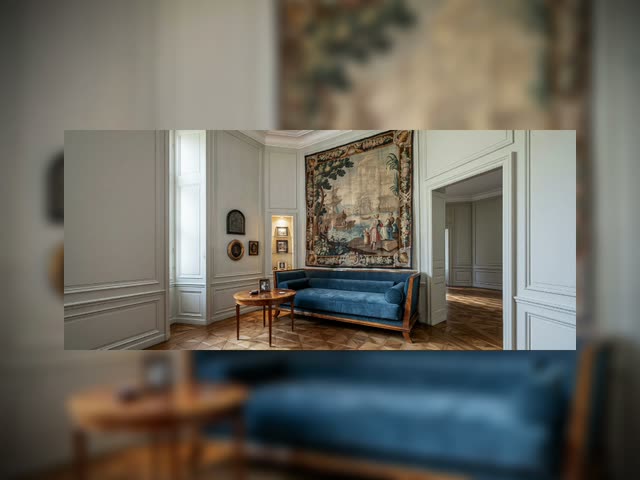
Expand Imageは、1枚の写真をクロップや歪みなしで任意のアスペクト比に拡張するガイド付きアウトペイントワークフローです。画像を新しいキャンバスサイズに合わせて緑色のマットで囲み、その緑部分だけをQwen Image Edit 2511で自然なシーン継続に置き換えます。GetImageSize、ImageResizeKJv2、CustomCombo、ComfyNumberConvertなどのユーティリティノードで新しい寸法や余白を計算し、元画像は中央にそのまま残ります。
新規部分の内容を維持・統一するため、TextGenerateLTX2PromptとローカルVLMバックエンド(要設定)で自動キャプションを生成し、JsonExtractStringで抽出します。ComfySwitchNodeで自動キャプションと手動記述(PrimitiveStringMultiline)を切り替え可能。最終指示文はStringConcatenateで組み立て、必要に応じてCLIPLoaderでテキスト条件付けし、Qwen Image Edit 2511に照明・質感・遠近感の一致を指示します。PreviewAnyやImageCompareで中間結果や比較も可能、SaveImageAdvancedで再現性のあるアウトペイント画像とメタデータを保存します。
API
このワークフローをコードから利用
すべてのComfyワークフローはJSONグラフです。以下のペイロードは、このワークフローそのものであり、ComfyUIが実行する内容と同じです — このURLから取得し、バージョン管理に保存したり、ComfyUIで読み込んでノードごとに実行できます。
Comfy SDKを使ってTypeScriptまたはPythonから実行できます。同じコードでComfy Cloudや自身でホストしたComfyUIのどちらにも対応 — ベースURLだけが異なります。
// Install (beta)
npm i @comfyorg/sdk

// Run this workflow (TypeScript)
import { Comfy } from "@comfyorg/sdk";

const client = new Comfy({ apiKey: "comfyui-..." });
const wf = await client.workflows.fromFile("workflow_api.json");
const job = await client.run(wf);
await job.getOutputs("<output-node-id>")[0].toFile("output.png");
SDKはAPI形式のワークフローを受け取ります:このワークフローをComfyUIで開き、「ファイル → ワークフローをエクスポート(API)」を使用してください。
FAQ


















