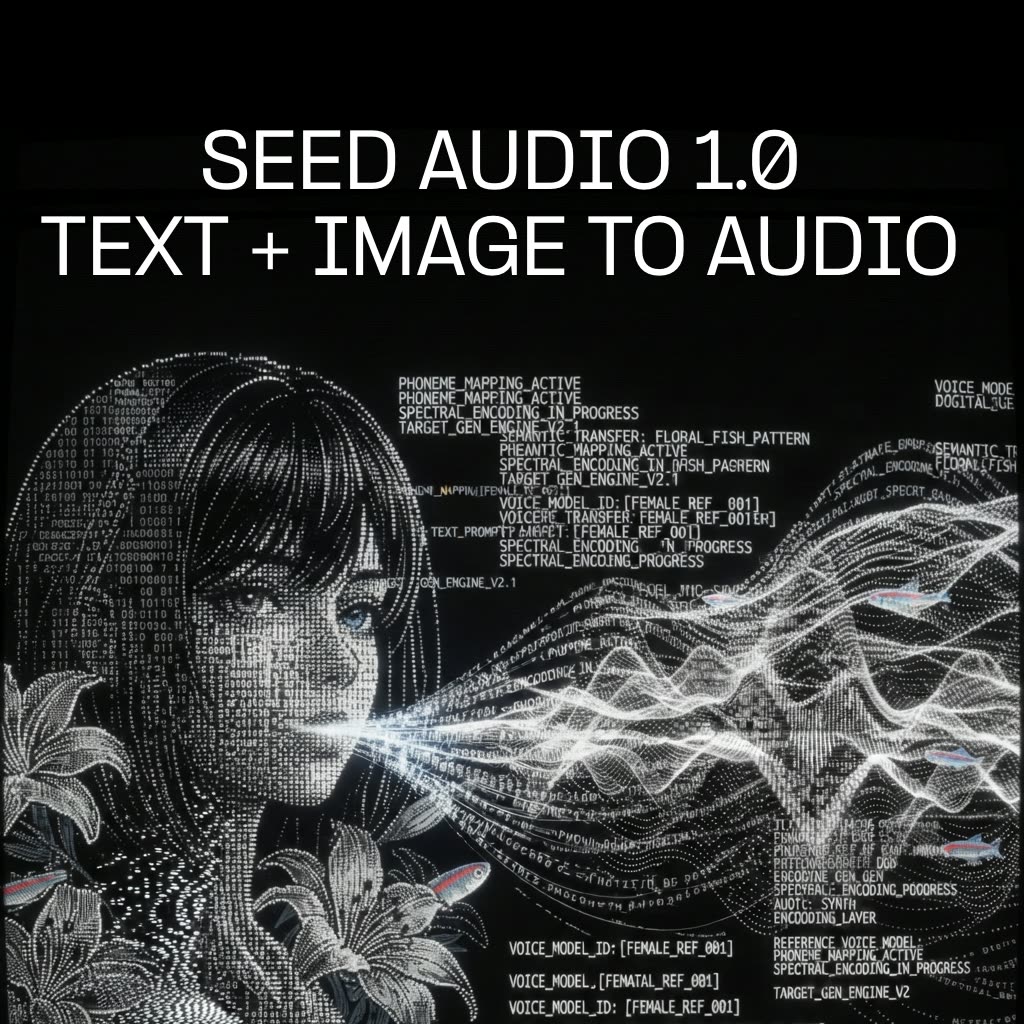
This workflow turns a single character image and a text prompt into a fully mixed audio clip with speech, ambience, background music, and sound effects. It centers on the ByteDanceSeedAudio node (Seed Audio 1.0), which accepts your image from LoadImage as a visual reference to derive a matching vocal identity, then synthesizes the spoken script and supporting layers described in your prompt. The output is saved with SaveAudioAdvanced, so you leave ComfyUI with a ready-to-share audio file.
Technically, the image conditions the model’s voice characteristics (vocal color, style cues) while the prompt serves both as the script and the sonic direction for ambience, music, and SFX. The MarkdownNote node is included for in-graph instructions or prompt notes. Because everything runs inside a simple chain—LoadImage → ByteDanceSeedAudio → SaveAudioAdvanced—you can iterate quickly: swap images to change the perceived character, refine the prompt to adjust performance and sound design, and re-run to compare variations. This makes it practical for rapid voice ideation, scene-building, and audio mockups without leaving ComfyUI.
API
Use this workflow from code
Every Comfy workflow is a JSON graph. The payload below is this workflow, exactly as ComfyUI runs it — fetch it from the URL, keep it in version control, or load it in ComfyUI and run it node by node.
Run it from TypeScript or Python with the Comfy SDK. The same code targets Comfy Cloud or a ComfyUI you host yourself — only the base URL changes.
// Install (beta)
npm i @comfyorg/sdk

// Run this workflow (TypeScript)
import { Comfy } from "@comfyorg/sdk";

const client = new Comfy({ apiKey: "comfyui-..." });
const wf = await client.workflows.fromFile("workflow_api.json");
const job = await client.run(wf);
await job.getOutputs("<output-node-id>")[0].toFile("output.png");
The SDK takes a workflow in API format: open this workflow in ComfyUI and use File → Export Workflow (API).
Comfy Cloud API access requires a plan with an API key.
FAQ


















