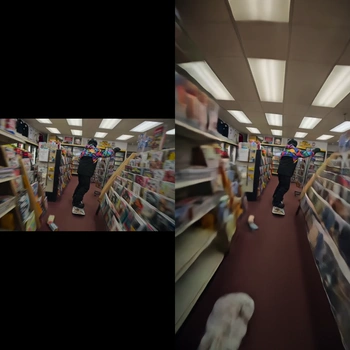
This ComfyUI workflow expands the boundaries of an existing video clip using LTX-2.3 with a dedicated Video Outpainting IC LoRA. It decodes your source video with VHS_LoadVideo, feeds frames into the core LTX-2.3 generation node (the custom node with ID 2e37ecc9-770a-4ac2-972c-e953901f49d3) where the LoRA guides the model to synthesize plausible content beyond the original edges, and then stitches the processed frames back into a video with VHS_VideoCombine. A MarkdownNote in the graph provides quick, in-context guidance.
Technically, the LoRA biases the base LTX-2.3 video diffusion model toward temporal, context-aware extrapolation. Controls like skip_first_frames and frame_count let you trim a long clip and iterate quickly on a representative segment before running the full range. Outpainting direction and amount are set on the LTX processing node (per-side expansion), while LoRA strength determines how assertively new content is invented versus preserved from the original. The result is a coherent, time-consistent extension of your scene—useful for reframing, adding headroom/side room, or conforming videos to new aspect ratios without obvious borders.
API
Use this workflow from code
Every Comfy workflow is a JSON graph. The payload below is this workflow, exactly as ComfyUI runs it — fetch it from the URL, keep it in version control, or load it in ComfyUI and run it node by node.
Run it from TypeScript or Python with the Comfy SDK. The same code targets Comfy Cloud or a ComfyUI you host yourself — only the base URL changes.
// Install (beta)
npm i @comfyorg/sdk

// Run this workflow (TypeScript)
import { Comfy } from "@comfyorg/sdk";

const client = new Comfy({ apiKey: "comfyui-..." });
const wf = await client.workflows.fromFile("workflow_api.json");
const job = await client.run(wf);
await job.getOutputs("<output-node-id>")[0].toFile("output.png");
The SDK takes a workflow in API format: open this workflow in ComfyUI and use File → Export Workflow (API).
Comfy Cloud API access requires a plan with an API key.
FAQ



















