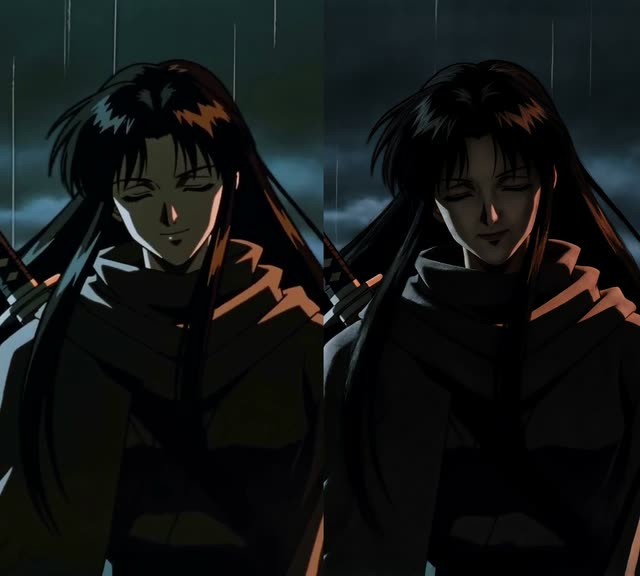
This ComfyUI tutorial workflow, LTX 2.3 - Anime2Real, demonstrates how to convert anime footage into realistic-looking video using a frame-by-frame image-to-image process. It relies on Video Helper Suite nodes to handle video I/O: VHS_LoadVideo extracts frames from your source clip, and VHS_VideoCombine stitches the processed frames back into a video file. The core transformation happens in a custom processing block (shown in the workflow as node 2e37ecc9-770a-4ac2-972c-e953901f49d3), which applies the LTX 2.3 IC LoRA (trained by Alisson Pereira) to push each frame toward photorealism.
Technically, the pipeline loads your clip, trims or limits the frame range with controls like skip_first_frames and frame_count, then feeds each frame through the LoRA-powered image-to-image pass before recombining the output frames. Because this is an experimental anime-to-realism mapping, results will vary with source quality, lighting, and character design. The design keeps the flow simple—no manual frame extraction or external editors—so you can iterate quickly on parameters and see how they affect temporal consistency and realism.
API
Use this workflow from code
Every Comfy workflow is a JSON graph. The payload below is this workflow, exactly as ComfyUI runs it — fetch it from the URL, keep it in version control, or load it in ComfyUI and run it node by node.
Run it from TypeScript or Python with the Comfy SDK. The same code targets Comfy Cloud or a ComfyUI you host yourself — only the base URL changes.
// Install (beta)
npm i @comfyorg/sdk

// Run this workflow (TypeScript)
import { Comfy } from "@comfyorg/sdk";

const client = new Comfy({ apiKey: "comfyui-..." });
const wf = await client.workflows.fromFile("workflow_api.json");
const job = await client.run(wf);
await job.getOutputs("<output-node-id>")[0].toFile("output.png");
The SDK takes a workflow in API format: open this workflow in ComfyUI and use File → Export Workflow (API).
Comfy Cloud API access requires a plan with an API key.
FAQ


















