Use Cases
AI Headshot Generator Workflows
Relight, refine, and polish a portrait into a professional headshot with open, editable ComfyUI workflows you control end to end.
4 workflows
The workflows
4 AI Headshot Generator Workflows


About This Workflow
What is the AI Headshot Generator?
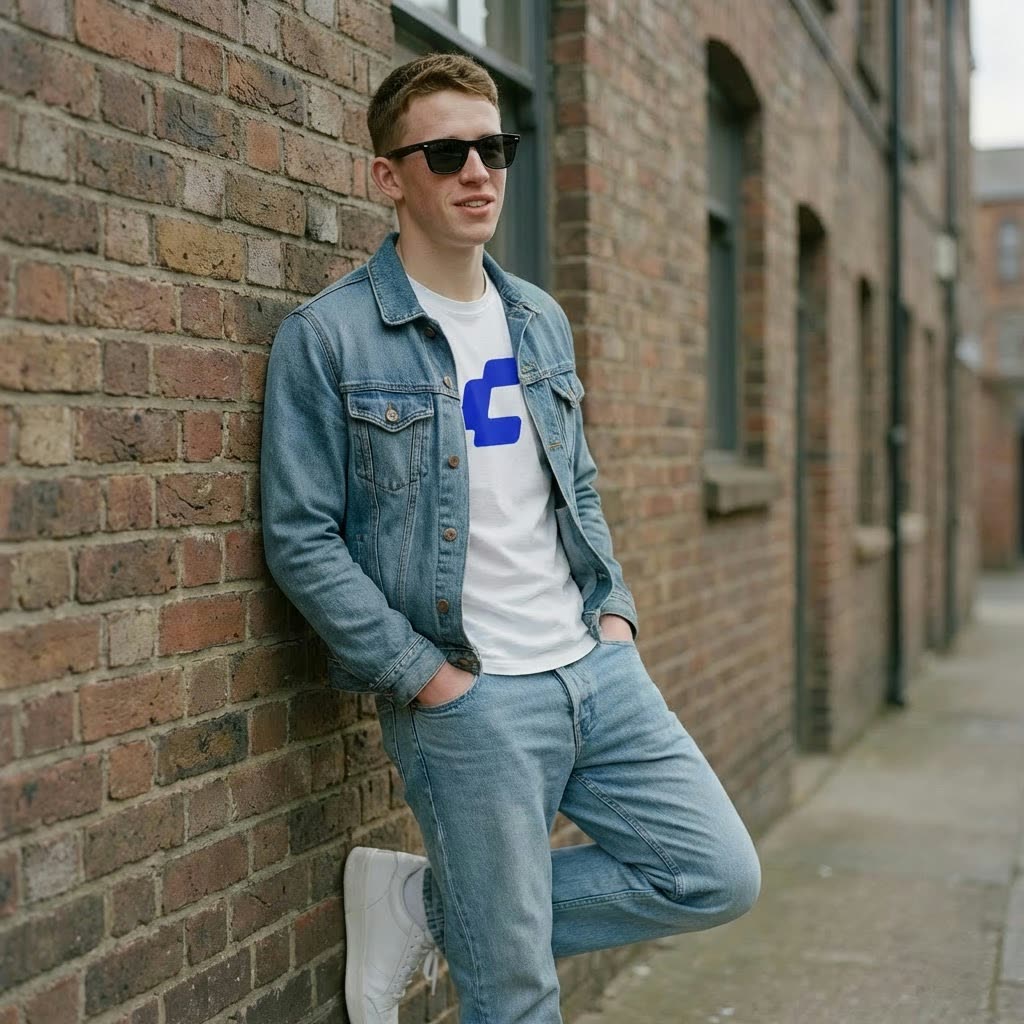
The most common complaint about an AI headshot generator is that the result looks like someone else. You upload your photos, wait, and get back a polished stranger with your vague resemblance. That happens because most tools train a fresh model on your uploads and then generate brand-new images from scratch. The ComfyUI workflows on this page work the other way around: they start from a real photo of you and improve it, so the person in the final headshot is unmistakably you.
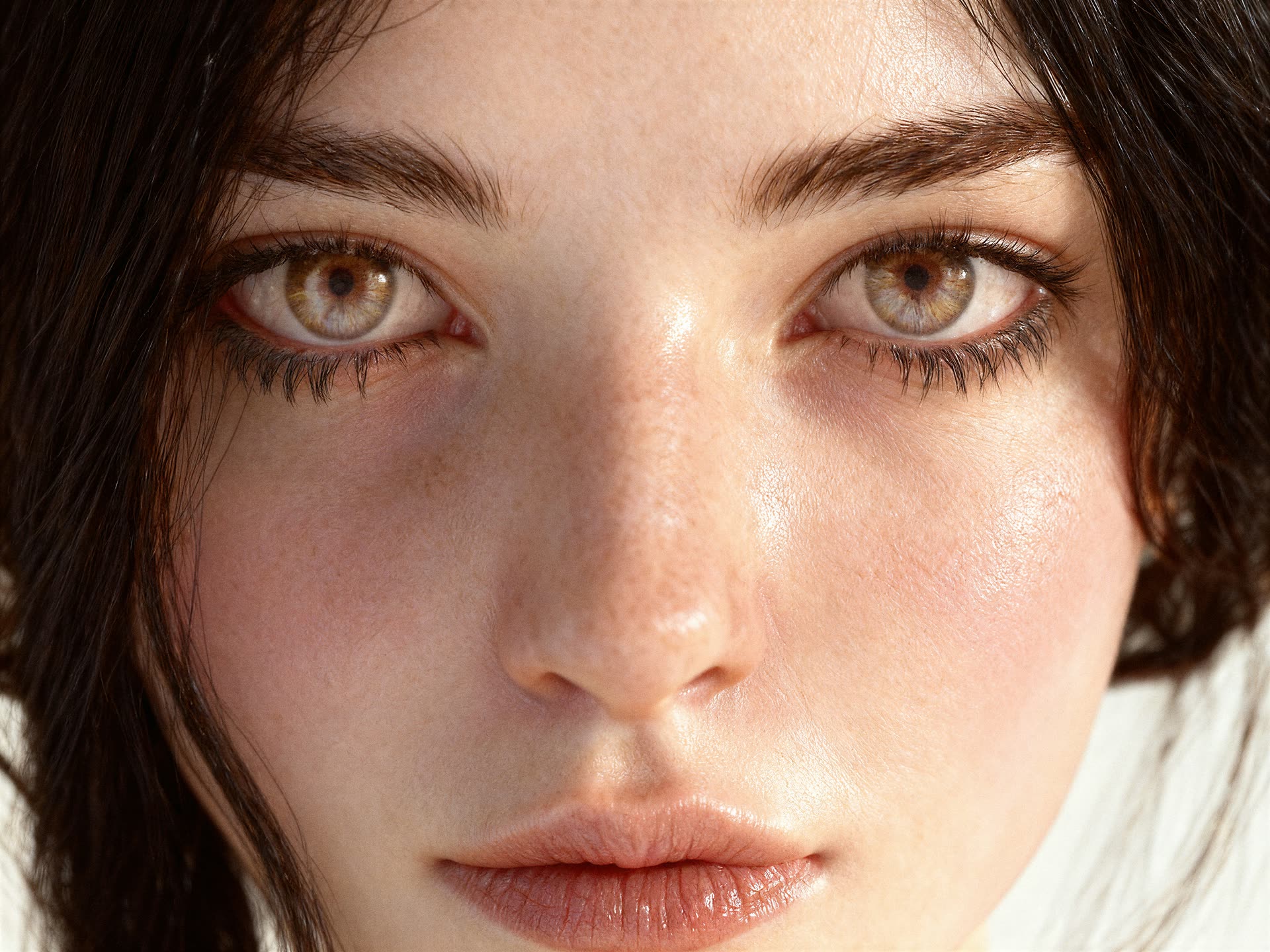
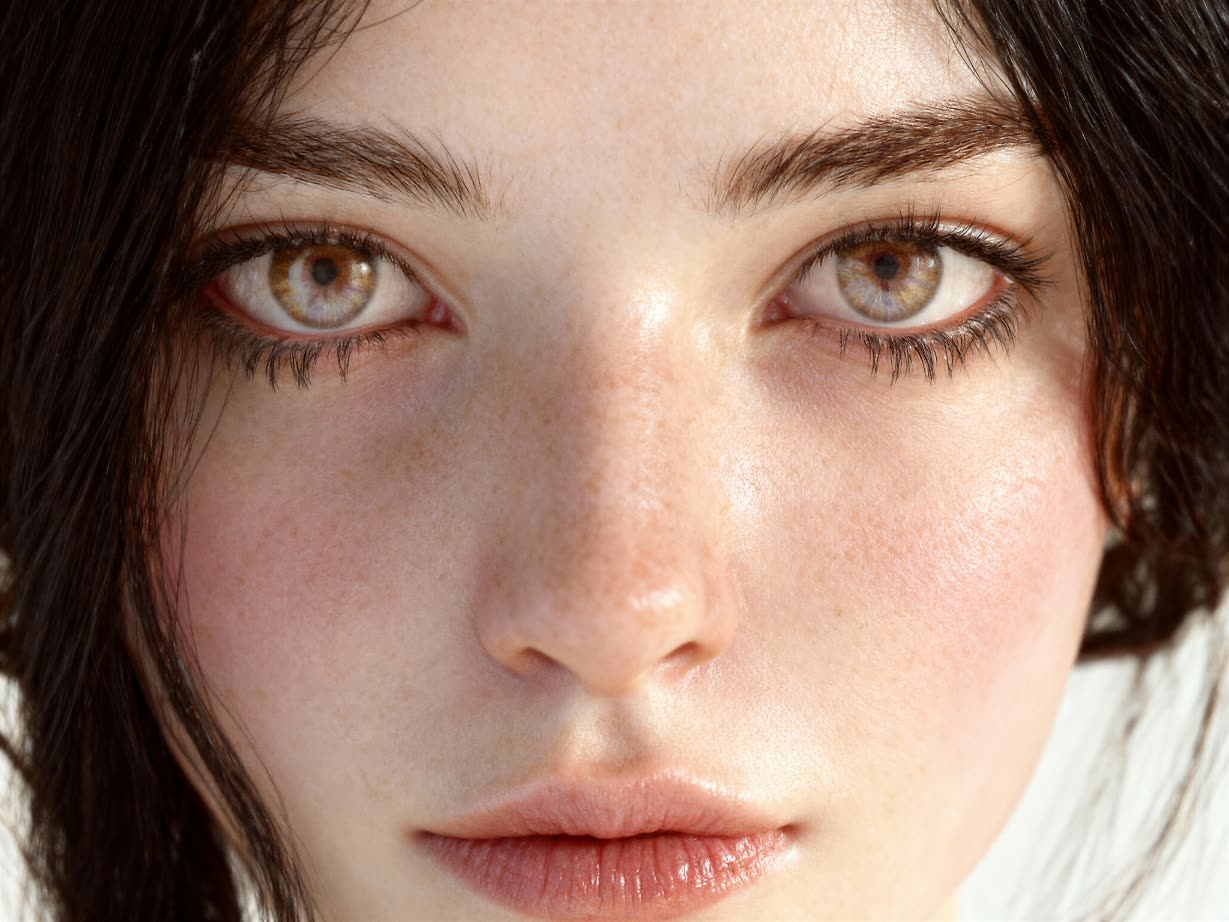
Three jobs turn an ordinary portrait into a professional one, and these workflows do each as a step you control. A character portrait relighting workflow built on Nano Banana Pro re-lights a flat phone snapshot with soft, even studio light, which is the single biggest difference between a snapshot and a studio headshot. A skin enhancer and upscaler combining Z-Image-Turbo and SDXL sharpens facial detail while keeping pores and texture, so the corporate headshot avoids the waxy, over-smoothed look that gives AI portraits away. Qwen-Image-Edit light migration can instead borrow the lighting from a reference photo you like and apply it to yours, and a Magnific skin enhancer cleans up the final frame.
Knowing what each step does helps you get a better result. Relighting changes how your face is lit: it softens harsh shadows, balances the light across your face, and sets a professional mood. Enhancement and upscaling then work on resolution and texture, recovering detail in the eyes and skin and enlarging the frame without the smearing a basic resize produces. Most professional headshots benefit from a relight followed by an enhancement pass, run in sequence, and these workflows let you do exactly that and stop when it looks right.
Because every step is open, you set the lighting direction, decide how far to push detail, and re-run any pass instead of accepting a single fixed output. There is no watermark and no hidden model deciding how your face should look. A professional photoshoot often locks you into a single look per session; here you can iterate as many times as you like on Comfy Cloud or locally in ComfyUI.
These workflows refine a real photo of you, so they are ideal when you have a usable portrait or selfie that needs studio polish, rather than when you want a model to invent brand-new poses. If your starting photo is sharp, front-facing, and evenly lit, a relight followed by an enhancement pass is usually all it takes to reach a result you would be happy to put on LinkedIn.


Reproducible, tunable, yours
Every step is exposed and adjustable, and the exact graph is yours to reuse across projects.
Start free. Upgrade when you’re ready.
Capabilities
What You Can Create
Relight, sharpen, and upscale a real photo of you into a studio-quality headshot, with every step exposed and adjustable.
Skin and detail enhancement
Sharpen facial detail and clean up skin with Z-Image-Turbo, SDXL, and Magnific while keeping natural texture.
Try workflow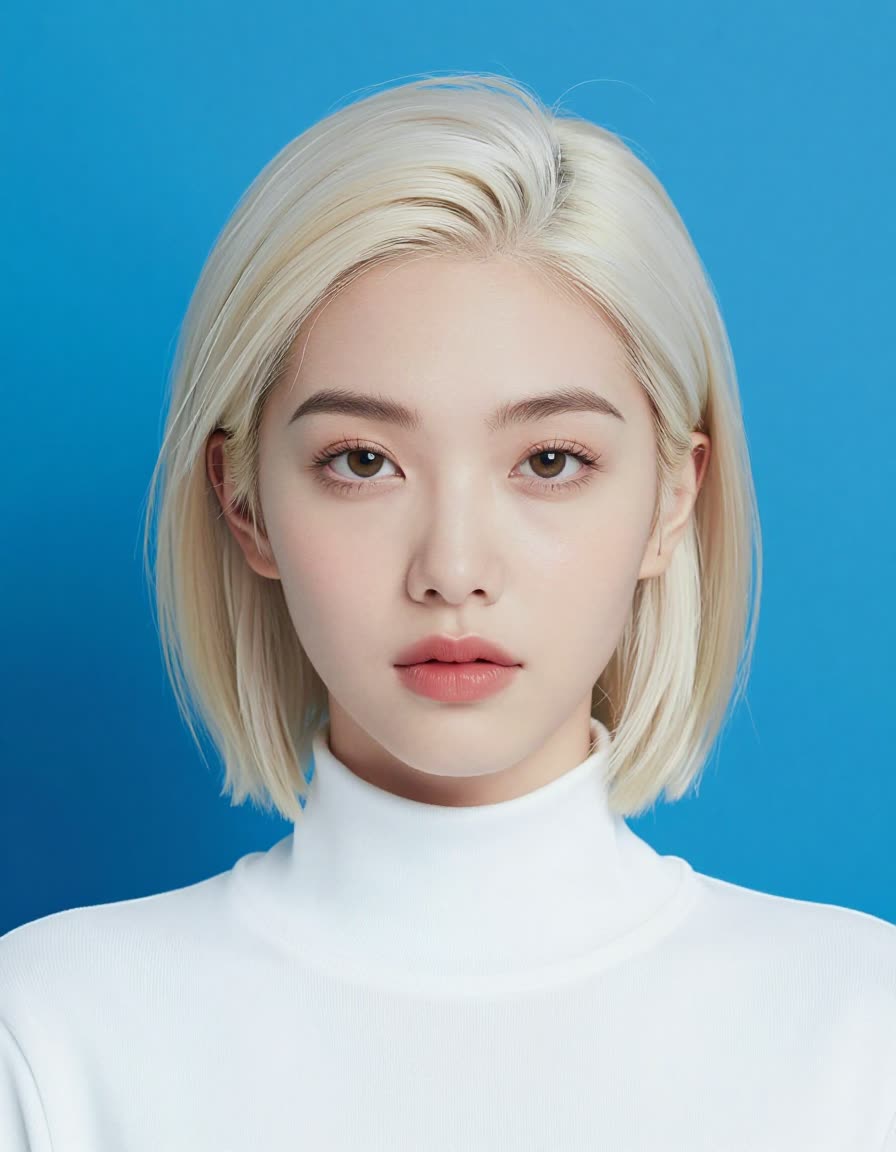

Resolution upscaling
Take the finished headshot to a crisp, full-resolution file suitable for print, badges, and large displays.
Try workflow
Stylized variations
Turn a selfie into stylized portrait variations when you want something playful rather than a straight headshot.
Try workflow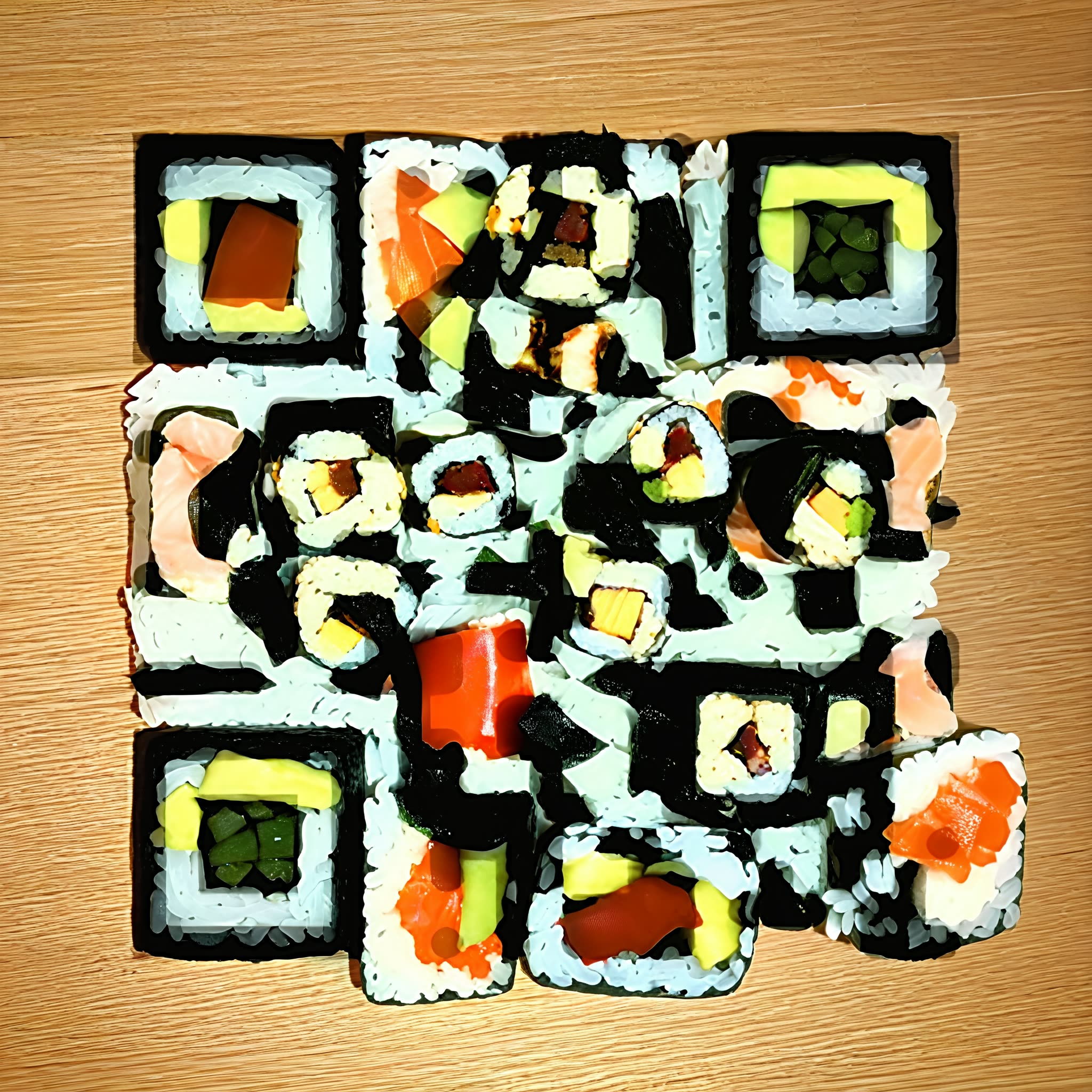


 WORKS
WORKS
Connect models, processing steps, and outputs on a canvas where every decision is visible and every step is inspectable.
Start from a community template or build from scratch.

Comparison
Why Comfy Workflows
-
It stays your face, not a lookalike
These workflows refine a real photo of you rather than generating a new person, so your features carry through every relight and enhancement pass.
-
Pick your variant and settings
ONLY ONComfyCLOUDSwitch between Nano Banana Pro relighting, Qwen-Image-Edit light migration, and the Z-Image-Turbo and SDXL skin pass, then set how far each step pushes.
-
Every node is exposed
You control lighting direction, detail strength, and background, and you can re-run any single step instead of accepting one locked output from a hidden tool.
-
No watermark, print-resolution exports
The polished headshot downloads at full resolution with no watermark and no per-image charge, ready for LinkedIn, a badge, or a printed directory.
Applications
What people use it for
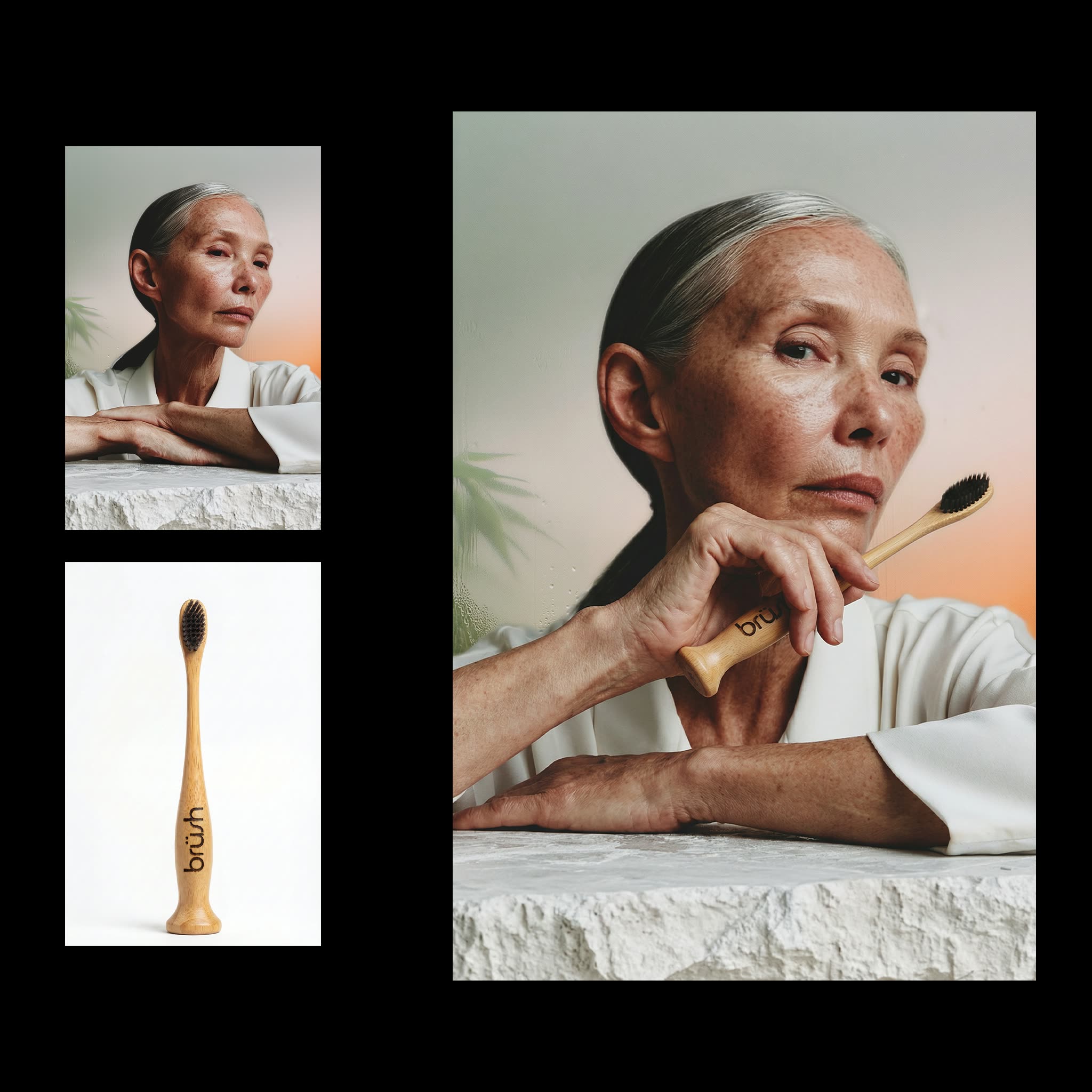
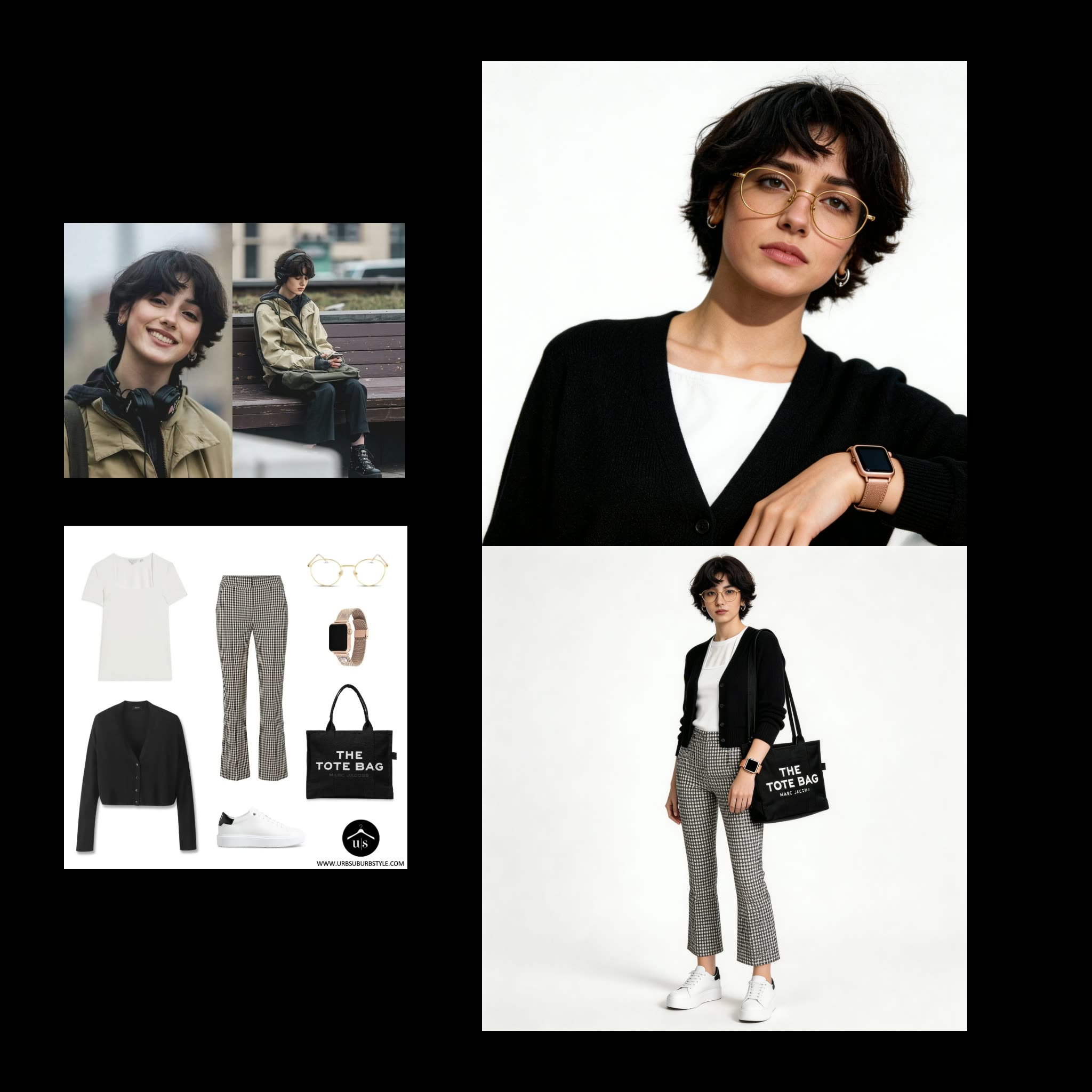
How people turn an ordinary portrait into a headshot they can actually use.


Frequently Asked Questions
AI Headshot Generator FAQ
Keep exploring
Related models and use cases to try next.