Use Cases
AI Tattoo Generator Workflows
Turn a prompt, sketch, or reference photo into clean tattoo artwork and stencil-ready line art with open, editable ComfyUI workflows you control.
8 workflows
The workflows
8 AI Tattoo Generator Workflows







About This Workflow
What is the AI Tattoo Generator?
Most people reach for an ai tattoo generator with one of two questions in mind: can it produce artwork I would actually want inked, and can my tattoo artist do something useful with the file. The honest answer for the workflows on this page is yes to both, with one important caveat. These are general image-generation, line-art, and ControlNet workflows in ComfyUI, adapted for tattoo design. They create the artwork (concepts, clean outlines, any style you can describe) but they do not paste a tattoo onto a photo of your arm. If you want to preview ink on skin, that is a separate compositing step, and these tools focus on the design itself.
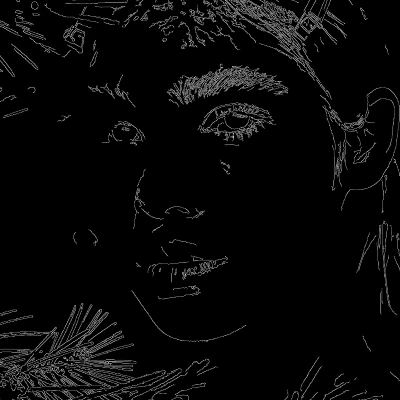
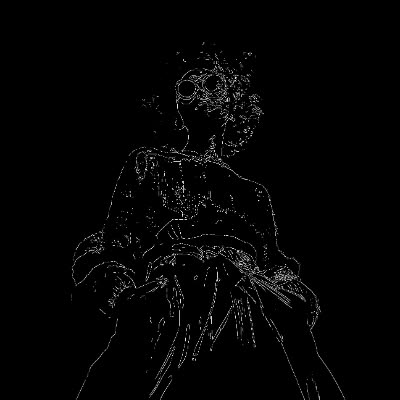
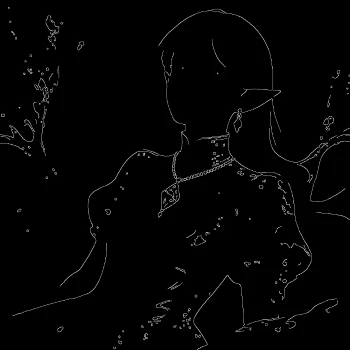
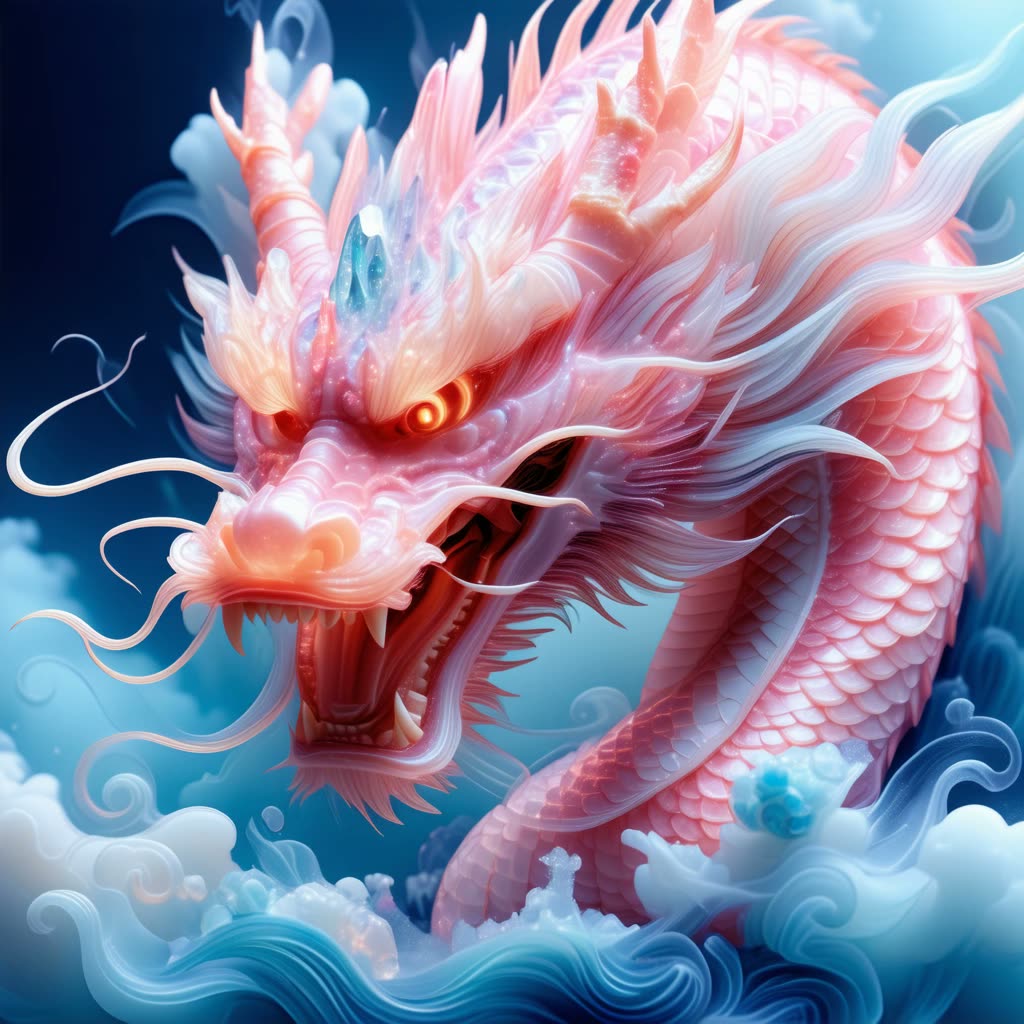
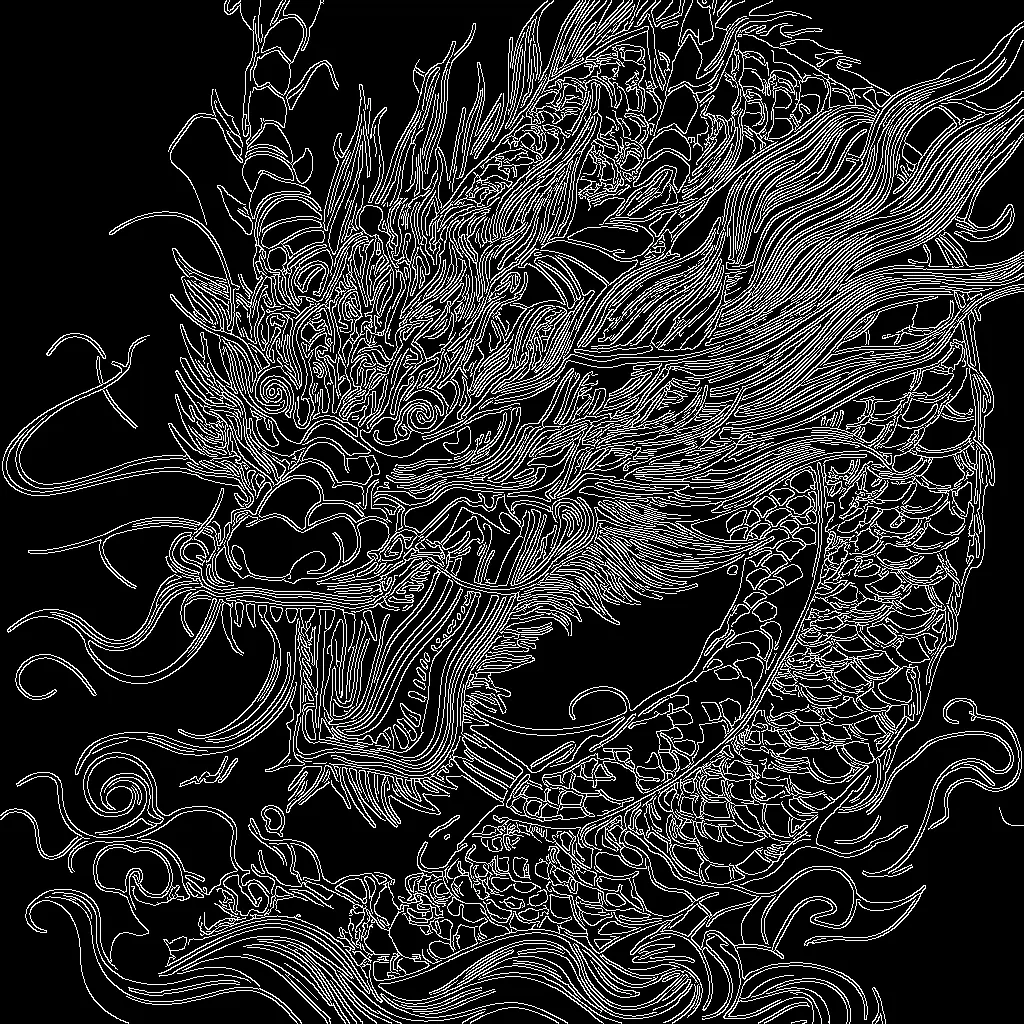
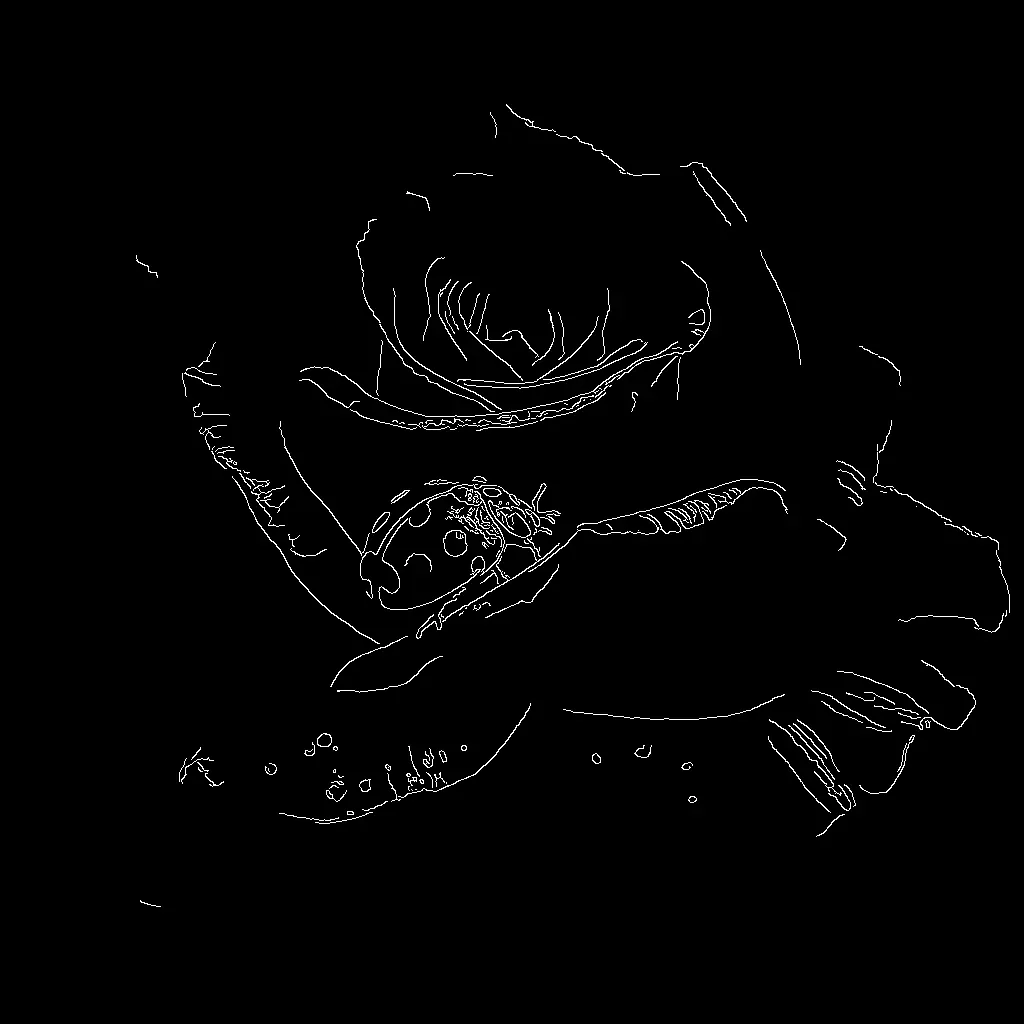
That focus is what makes them genuinely useful. A text-to-image workflow built on Flux.2 Dev or Z-Image-Turbo turns a written brief into polished concept art in seconds, so you can explore a dozen directions before committing. Once you have a composition you like, a line-art workflow converts a photo or rough sketch into crisp black outlines, which is the foundation of a tattoo stencil. The Qwen-Image Union Control workflow uses ControlNet to keep the structure of your reference (a pose, an object, a layout) while restyling it, so the design follows the shape you actually want rather than whatever the model imagines.
Knowing which workflow does which job saves a lot of guessing. Use text-to-image when you are starting from nothing but an idea and need a tattoo idea generator to spark options. Reach for the line-art or video-to-lineart conversion when you already have an image and need clean contours for tracing. Bring in ControlNet when you have a specific reference whose composition must survive the restyle. Most projects move through these in sequence: brainstorm a concept, lock the composition, then extract clean line art for the stencil.
This is where a working artist gets the most value. Few professionals tattoo a raw AI render as-is, and they should not. The realistic path is to generate a strong base, then redraw and adjust it so the linework reads on skin, holds up as it ages, and fits the body. Because every ComfyUI workflow here is open, you control the prompt, the line weight, the ControlNet strength, and the seed, then re-run any step instead of accepting a single locked output. That makes the result a starting point an artist can refine, not a finished design pretending to be one.
For someone planning their own tattoo, the same openness means you can iterate as much as you want. Generate a custom tattoo design from a description, push it toward a fine line tattoo design or a bolder traditional look, and export clean outlines to hand your artist. There is no watermark and no hidden model quietly deciding the style for you. You can run everything locally in ComfyUI or on Comfy Cloud with no setup.
A tattoo design generator is only as good as the brief and the cleanup around it. Vague prompts produce generic flash; specific ones about subject, style, line weight, and placement produce something worth taking to a chair. Style references matter too: feeding the line art workflow a clean, high-contrast image gives you sharper outlines than a busy photo. Treat these workflows as a fast, controllable way to design the artwork, hand the line art tattoo file to a professional, and let them adapt it for skin. Used that way, they shorten the part of the process that used to take days of sketching down to an afternoon of iteration.

Reproducible, tunable, yours
Every step is exposed and adjustable, and the exact graph is yours to reuse across projects.
Start free. Upgrade when you’re ready.
Capabilities
What You Can Create
Generate concepts, convert sketches to clean line art, and lock composition with ControlNet for stencil-ready designs.
ControlNet composition
Keep the pose, edges, or layout of a reference image with the Qwen-Image InstantX Union ControlNet while restyling it into a tattoo design.
Try workflow
Fine line and minimalist
Push a concept toward thin, delicate strokes for a fine line tattoo design, or thicken weights for bolder traditional work.
Try workflow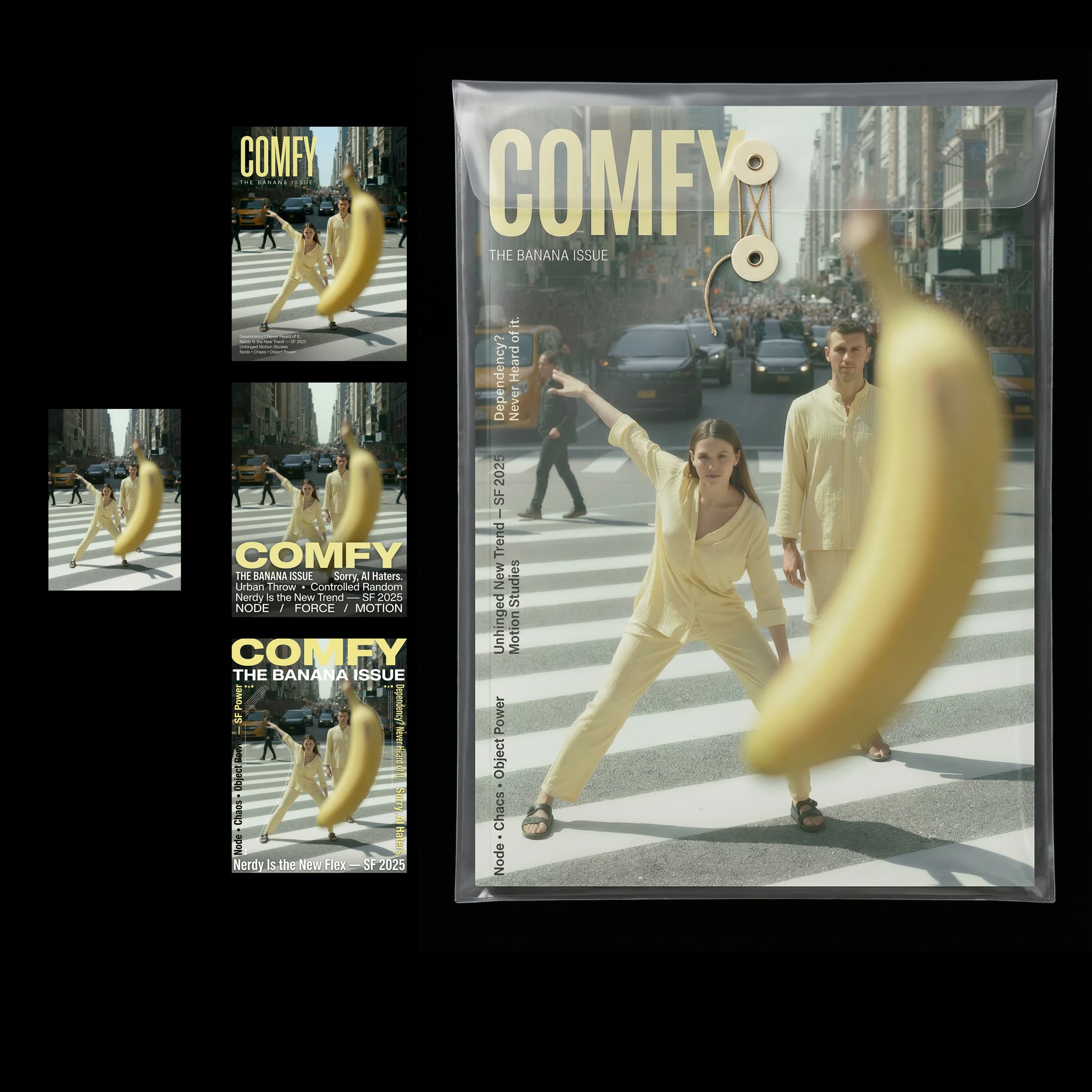

Style adaptation
Restyle a base image into blackwork, illustrative, geometric, or watercolor looks using Qwen-Image and Nano Banana Pro.
Try workflow


 WORKS
WORKS
Connect models, processing steps, and outputs on a canvas where every decision is visible and every step is inspectable.
Start from a community template or build from scratch.

Comparison
Why Comfy Workflows
-
Clean line art an artist can actually trace
The line-art and ControlNet steps output crisp single-weight outlines at full resolution, the stencil-ready file a tattooer needs rather than a flat render they have to redraw from scratch.
-
Pick your variant and settings
ONLY ONComfyCLOUDSwap between Flux.2 Dev, Qwen-Image, Z-Image-Turbo, and Nano Banana Pro, then adjust prompt, line weight, ControlNet strength, and seed to push a concept toward fine line, blackwork, or bold traditional.
-
More control than any one-click app
Every node is exposed, so you re-run a single step instead of accepting one locked output, and the composition follows your reference instead of whatever the model invents.
-
No watermark, run local or in the browser
Z-Image-Turbo iterates in seconds on modest hardware, and every export ships at full resolution with no watermark, whether you run locally in ComfyUI or on Comfy Cloud with no install.
Applications
What people use it for
How artists and clients put these design workflows to work before the chair.

Frequently Asked Questions
AI Tattoo Generator FAQ
Keep exploring
Related models and use cases to try next.