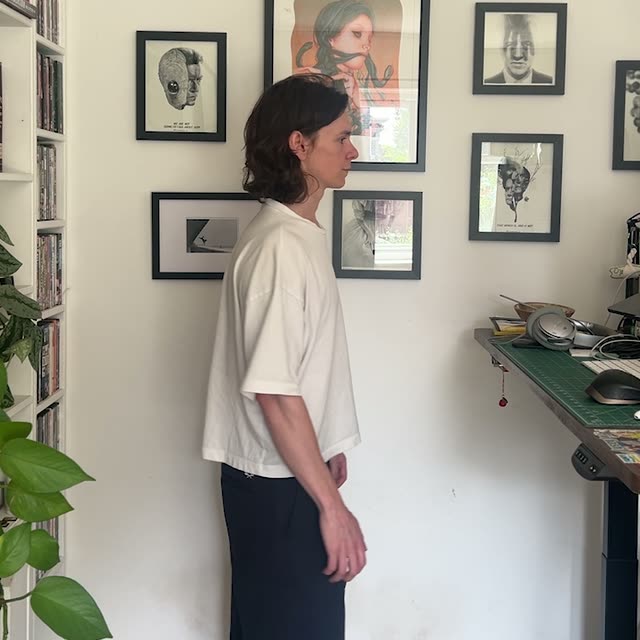
此 ComfyUI 教學會帶你完成一個以 GeminiVideoOmni 節點驅動的服裝替換工作流程。你會用 LoadVideo(Your Footage)載入人物影片,並用 LoadImage(Outfit Reference)載入一張服裝照片。GeminiVideoOmni 節點會使用這些輸入以及一段自然語言指令(由 PrimitiveNode 提供),把參考圖片中的服裝映射到影片中的移動主體上,同時保留身份、動作、相機取景以及原始背景。結果會用 SaveVideo 輸出。
在技術上,此工作流程讓具備影片感知的生成模型同時依賴來源影格與服裝參考圖進行條件設定。來源影片提供結構與動作引導,讓臉部、手部與環境保持穩定;服裝參考則引導衣著外觀跨影格一致,確保時間一致性。圖形中的 MarkdownNote 節點提供內嵌說明,不影響處理。只需少量節點、無需手動遮罩或轉描,適合用於快速虛擬試穿、服裝概念設計以及造型預覽。
API
從程式碼使用此工作流
每個 Comfy 工作流都是一個 JSON 圖。下方的 payload 就是此工作流,與 ComfyUI 執行時完全相同 — 你可以從此 URL 取得、放入版本控制,或在 ComfyUI 載入並逐節點執行。
使用 Comfy SDK 以 TypeScript 或 Python 執行。相同程式碼可用於 Comfy Cloud 或你自架的 ComfyUI — 只需更改 base URL。
// Install (beta)
npm i @comfyorg/sdk

// Run this workflow (TypeScript)
import { Comfy } from "@comfyorg/sdk";

const client = new Comfy({ apiKey: "comfyui-..." });
const wf = await client.workflows.fromFile("workflow_api.json");
const job = await client.run(wf);
await job.getOutputs("<output-node-id>")[0].toFile("output.png");
SDK 需使用 API 格式的工作流:請在 ComfyUI 開啟此工作流,並使用 檔案 → 匯出工作流(API)。
常見問題
常見問題



















Showing 30 of 30 templates