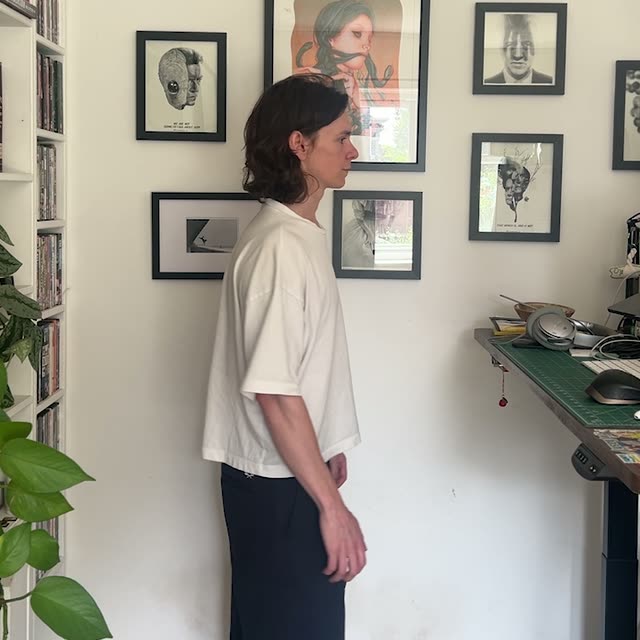
이 ComfyUI 튜토리얼은 GeminiVideoOmni 노드를 기반으로 한 집중형 의상 스왑 워크플로를 안내합니다. LoadVideo(Your Footage)로 사람 비디오를 로드하고 LoadImage(Outfit Reference)로 의상 사진 1장을 로드합니다. GeminiVideoOmni 노드는 이 입력들과 함께 PrimitiveNode로 제공되는 평문 지시를 받아, 클립에서 움직이는 피사체에 레퍼런스 이미지의 의상을 매핑하면서 정체성, 모션, 카메라 프레이밍, 원본 배경을 유지합니다. 생성 결과는 SaveVideo로 저장됩니다.
기술적으로 이 워크플로는 비디오 인지 생성 모델을 소스 프레임과 레퍼런스 의상 이미지로 조건화합니다. 소스 비디오는 구조와 모션을 가이드해 얼굴, 손, 환경이 안정적으로 유지되게 하고, 레퍼런스는 프레임 전반에 걸친 의상 외관을 가이드해 시간적 일관성을 확보합니다. 그래프의 MarkdownNote 노드는 캔버스 내 안내용이며 처리에는 영향을 주지 않습니다. 수동 마스킹이나 로토스코핑 없이 몇 개의 노드만으로 구성되어, 빠른 가상 피팅, 패션 컨셉 구상, 스타일링 미리보기에 적합합니다.
API
코드에서 이 워크플로우 사용하기
모든 Comfy 워크플로우는 JSON 그래프입니다. 아래 페이로드는 이 워크플로우 그 자체로, ComfyUI에서 실행되는 것과 동일합니다 — URL에서 가져오거나, 버전 관리에 보관하거나, ComfyUI에서 불러와 노드별로 실행할 수 있습니다.
Comfy SDK로 TypeScript 또는 Python에서 실행하세요. 동일한 코드는 Comfy Cloud 또는 직접 호스팅하는 ComfyUI 모두에 적용됩니다 — 기본 URL만 다릅니다.
// Install (beta)
npm i @comfyorg/sdk

// Run this workflow (TypeScript)
import { Comfy } from "@comfyorg/sdk";

const client = new Comfy({ apiKey: "comfyui-..." });
const wf = await client.workflows.fromFile("workflow_api.json");
const job = await client.run(wf);
await job.getOutputs("<output-node-id>")[0].toFile("output.png");
SDK는 API 형식의 워크플로우를 사용합니다: 이 워크플로우를 ComfyUI에서 열고 파일 → 워크플로우 내보내기(API)를 사용하세요.
FAQ


















