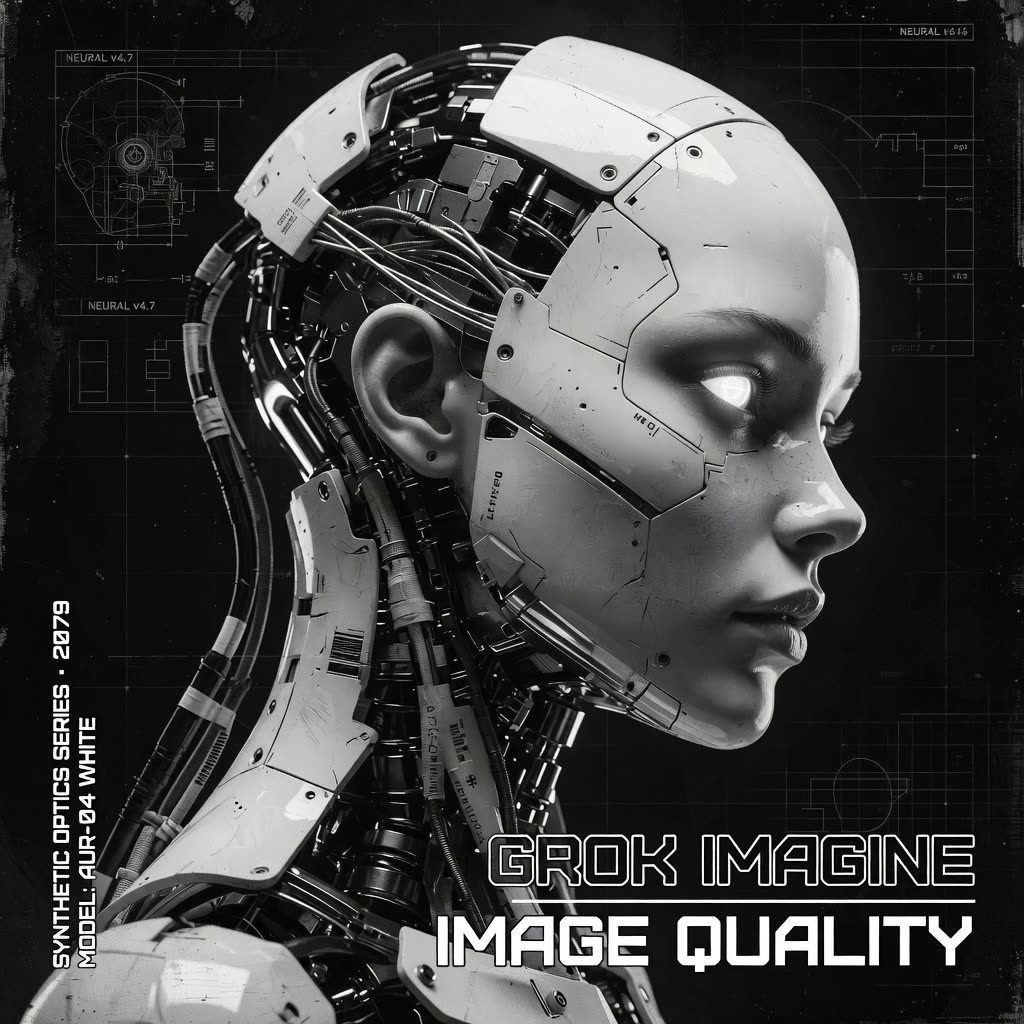
此 ComfyUI 工作流使用 GrokImageNode 通过 Grok Imagine API 从文本提示词生成图像,然后用 SaveImage 保存结果。它适用于你需要在图像中生成干净、可读文本(招牌、海报、UI 模型图)同时还要保持较强画面细节的场景。流程刻意做得很精简——输入提示词,输出图像——让你专注于提示词撰写和快速迭代。
从技术上看,GrokImageNode 会将你的提示词和节点暴露的参数(例如比例/尺寸、seed 或图像数量,取决于你的构建版本)发送到远程 Grok Imagine 模型,并将已生成的图像张量返回到 ComfyUI。随后 SaveImage 节点会按你选择的文件名前缀,将图像写入 ComfyUI 的输出目录。最终得到的是一个直接、稳定的文本生成图像流程:通过外部 API 提升质量与文本渲染效果,同时保留 ComfyUI 基于节点的工作区带来的便利。
API
通过代码使用此工作流
每个 Comfy 工作流都是一个 JSON 图。下面的内容就是此工作流的完整数据,ComfyUI 运行时也是如此——你可以从该 URL 获取、放入版本控制,或在 ComfyUI 中加载并逐节点运行。
使用 Comfy SDK 从 TypeScript 或 Python 运行。相同代码可用于 Comfy Cloud 或你自托管的 ComfyUI——只需更改基础 URL。
// Install (beta)
npm i @comfyorg/sdk

// Run this workflow (TypeScript)
import { Comfy } from "@comfyorg/sdk";

const client = new Comfy({ apiKey: "comfyui-..." });
const wf = await client.workflows.fromFile("workflow_api.json");
const job = await client.run(wf);
await job.getOutputs("<output-node-id>")[0].toFile("output.png");
SDK 需要 API 格式的工作流:在 ComfyUI 中打开此工作流,使用 文件 → 导出工作流(API)。
常见问题
常见问题



















Showing 30 of 30 templates