
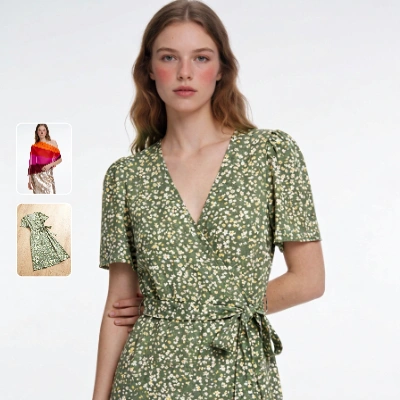
This workflow compares how different garment image types—flat-lay, mannequin, and on-model—perform in a virtual try-on using the Kling model. Two LoadImage nodes bring in a person photo and a garment image; the KlingTryOnNode then generates a realistic try-on while preserving the subject’s face and pose. The ImageCompare node assembles a side-by-side view of the original person photo and the generated try-on so you can visually judge fit alignment, drape plausibility, color/pattern fidelity, and identity preservation. SaveImageAdvanced stores both the try-on and the comparison output, and a MarkdownNote provides in-graph guidance.
To make this a fair comparison, keep the same person image while swapping the garment source across flat-lay, mannequin, and on-model product shots. Normalize garment framing and scale before each run so the KlingTryOnNode sees similar inputs. Expect trade-offs: flat-lay images are clean and easy to segment but offer fewer 3D cues; mannequin shots add structure without pose conflict; on-model shots carry natural drape cues but may introduce pose/shadow mismatches. The side-by-side ImageCompare output helps you quantify which input style yields the fewest artifacts for your catalog or campaign.
API
Utiliser ce workflow depuis le code
Chaque workflow Comfy est un graphe JSON. Le contenu ci-dessous est ce workflow, exactement comme ComfyUI l’exécute — récupérez-le depuis l’URL, gardez-le dans le contrôle de version, ou chargez-le dans ComfyUI et exécutez-le nœud par nœud.
Exécutez-le depuis TypeScript ou Python avec le Comfy SDK. Le même code cible Comfy Cloud ou un ComfyUI auto-hébergé — seule l’URL de base change.
// Install (beta)
npm i @comfyorg/sdk

// Run this workflow (TypeScript)
import { Comfy } from "@comfyorg/sdk";

const client = new Comfy({ apiKey: "comfyui-..." });
const wf = await client.workflows.fromFile("workflow_api.json");
const job = await client.run(wf);
await job.getOutputs("<output-node-id>")[0].toFile("output.png");
Le SDK prend un workflow au format API : ouvrez ce workflow dans ComfyUI et utilisez Fichier → Exporter le workflow (API).
L’accès à l’API Comfy Cloud nécessite un forfait avec clé API.



















