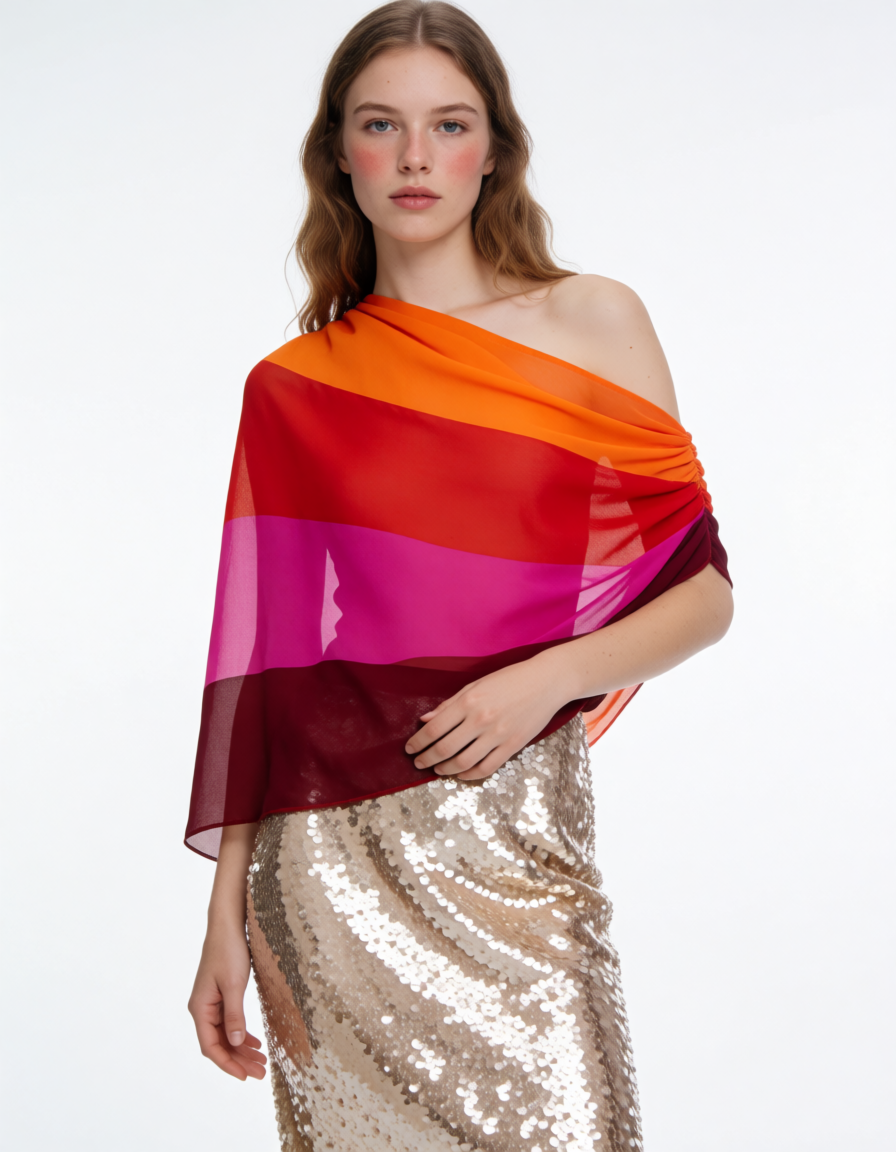
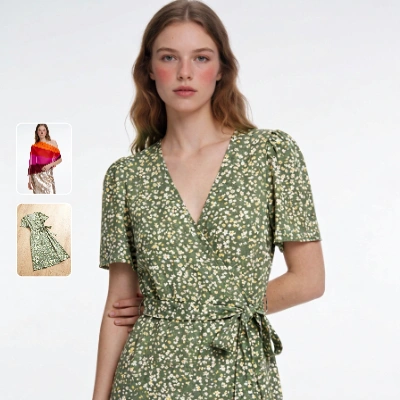
This workflow compares how different garment image types—flat-lay, mannequin, and on-model—perform in a virtual try-on using the Kling model. Two LoadImage nodes bring in a person photo and a garment image; the KlingTryOnNode then generates a realistic try-on while preserving the subject’s face and pose. The ImageCompare node assembles a side-by-side view of the original person photo and the generated try-on so you can visually judge fit alignment, drape plausibility, color/pattern fidelity, and identity preservation. SaveImageAdvanced stores both the try-on and the comparison output, and a MarkdownNote provides in-graph guidance.
To make this a fair comparison, keep the same person image while swapping the garment source across flat-lay, mannequin, and on-model product shots. Normalize garment framing and scale before each run so the KlingTryOnNode sees similar inputs. Expect trade-offs: flat-lay images are clean and easy to segment but offer fewer 3D cues; mannequin shots add structure without pose conflict; on-model shots carry natural drape cues but may introduce pose/shadow mismatches. The side-by-side ImageCompare output helps you quantify which input style yields the fewest artifacts for your catalog or campaign.
API
코드에서 이 워크플로우 사용하기
모든 Comfy 워크플로우는 JSON 그래프입니다. 아래 페이로드는 이 워크플로우 그 자체로, ComfyUI에서 실행되는 것과 동일합니다 — URL에서 가져오거나, 버전 관리에 보관하거나, ComfyUI에서 불러와 노드별로 실행할 수 있습니다.
Comfy SDK로 TypeScript 또는 Python에서 실행하세요. 동일한 코드는 Comfy Cloud 또는 직접 호스팅하는 ComfyUI 모두에 적용됩니다 — 기본 URL만 다릅니다.
// Install (beta)
npm i @comfyorg/sdk

// Run this workflow (TypeScript)
import { Comfy } from "@comfyorg/sdk";

const client = new Comfy({ apiKey: "comfyui-..." });
const wf = await client.workflows.fromFile("workflow_api.json");
const job = await client.run(wf);
await job.getOutputs("<output-node-id>")[0].toFile("output.png");
SDK는 API 형식의 워크플로우를 사용합니다: 이 워크플로우를 ComfyUI에서 열고 파일 → 워크플로우 내보내기(API)를 사용하세요.



















