Hub
ComfyUI workflows
Turn your ideas into finished results with multi-step workflows powered by AI models.
All workflows
- Nano Banana Pro
Create a character turnaround
Image - Qwen-Image-Edit
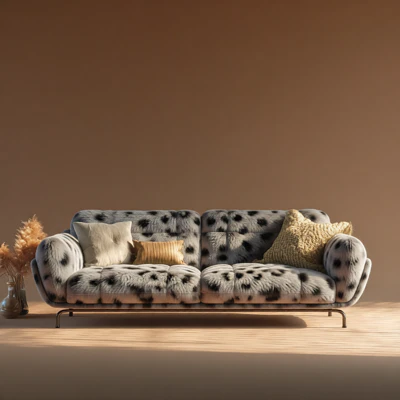
Change a material
Image - Qwen-Image-Edit
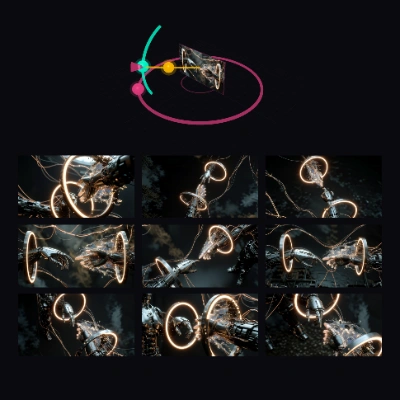
See your subject from a new angle
Image - Flux.2 Dev, Flux
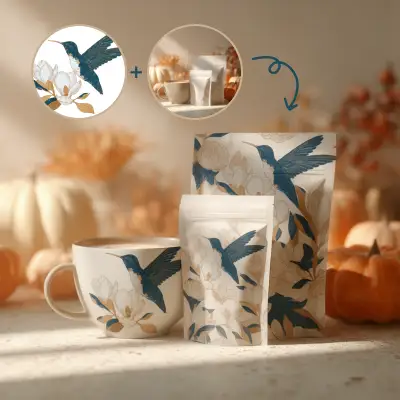
Create a product mockup
Image - Nano Banana Pro
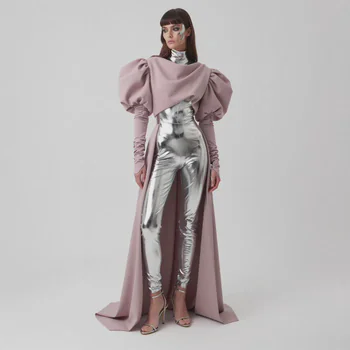
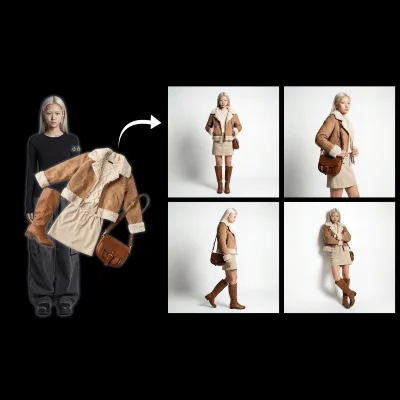
Try an outfit on a character
Image - Seedream
Put your product in a new scene
Image - SeedVR2
Upscale and restore detail
Image - Nano Banana Pro
Sharpen a product photo
Image - Topaz
Upscale an illustration
Image - HitPaw
Restore portrait detail
Image - FLUX.1 Fill
Edit a selected region
Image - FLUX.1 Fill
Extend an image’s borders
Image - Qwen-Image-Layered
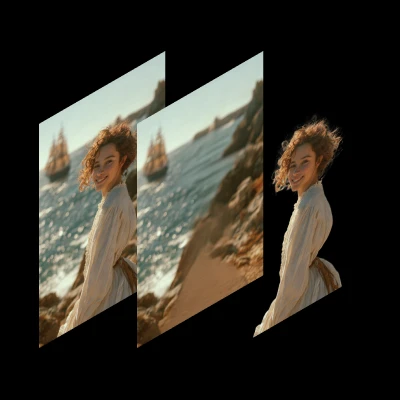
Separate an image into editable layers
Image - BiRefNet
Remove an image background
Image - Qwen-Image-Edit
Match lighting from a reference
Image - BRIA
Remove an object
Image - Qwen-Image-Edit
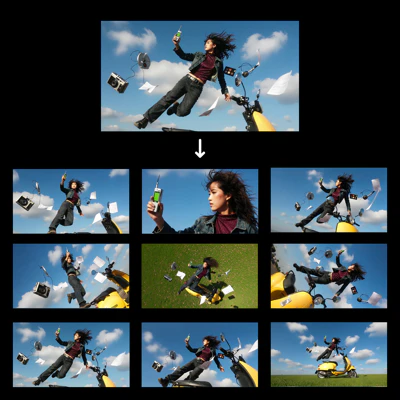
1 Click Multiple Character Angles
Image Edit - Qwen-Image-Edit
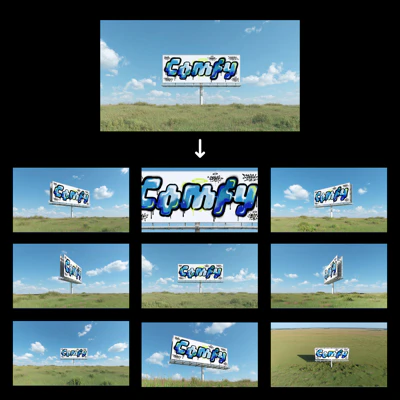
1 click Multiple Scene Angles
Image Edit - Partner node
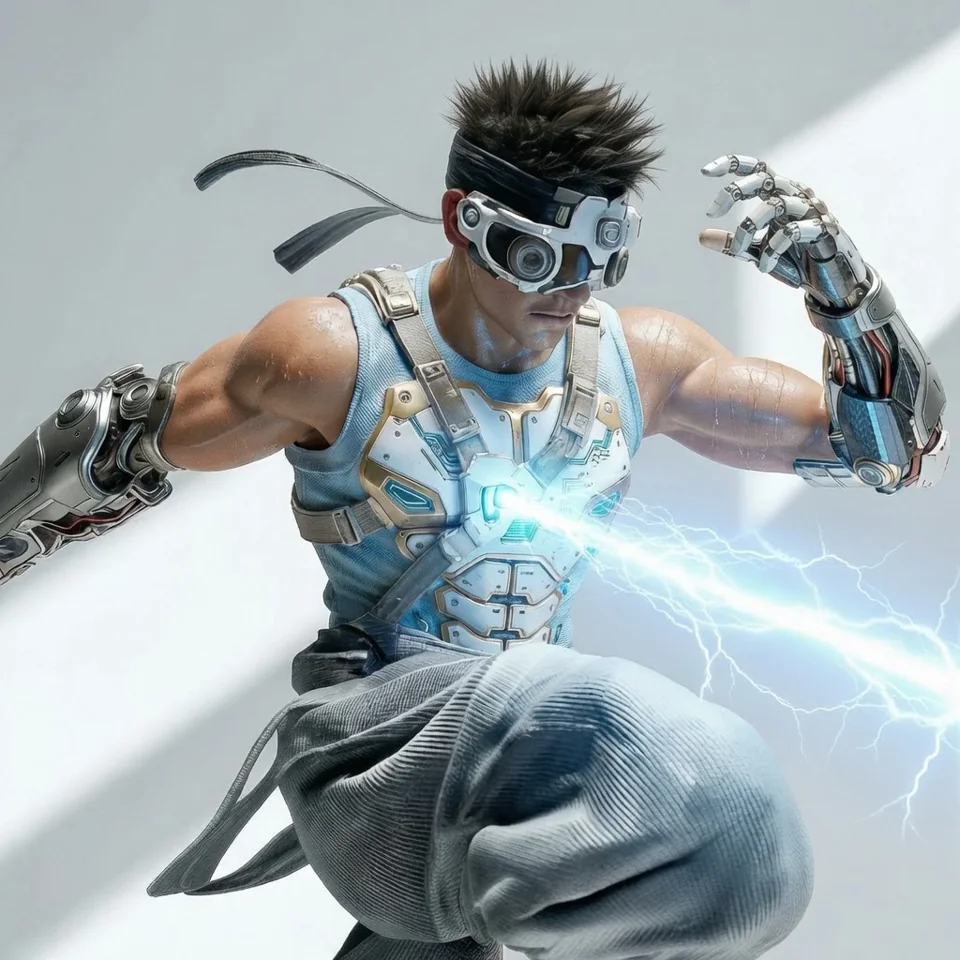
1 input multiple styles from prompt
Image EditStyle Transfer - Flux.2 Klein
1.3 Starter – Product Photography
Image EditImage - Z-Image-Turbo
2.2 Creator - Diffusion Guidance
InpaintingImage - Gemini3 Pro Image Preview, Google, Nano Banana Pro
360 Full-body Turnaround
Multiple Angles - Gemini3 Pro Image Preview, Google, Nano Banana Pro
3x3 Brand Icon Assets Grid
Brand DesignImage Editicon - Nano Banana Pro, Google
3x3 Grid For Product Ads
Image EditImage









This page link is out of date. Showing the first page of the current results.
What is a ComfyUI workflow?
A ComfyUI workflow is a graph of nodes that connects AI models, prompts and settings into one process. Each workflow on this page turns an input, such as a text prompt or an image, into a finished result. Open a workflow to see its steps and the models it uses, then run it in your browser.