Hub
ComfyUI workflows
What will you make next? Try the latest AI models with your own ideas, right in your browser.
Turn your ideas into finished results with multi-step workflows powered by AI models.
Take on bigger ideas with apps that bring multiple workflows together.
Edit video
- SSeedVR2
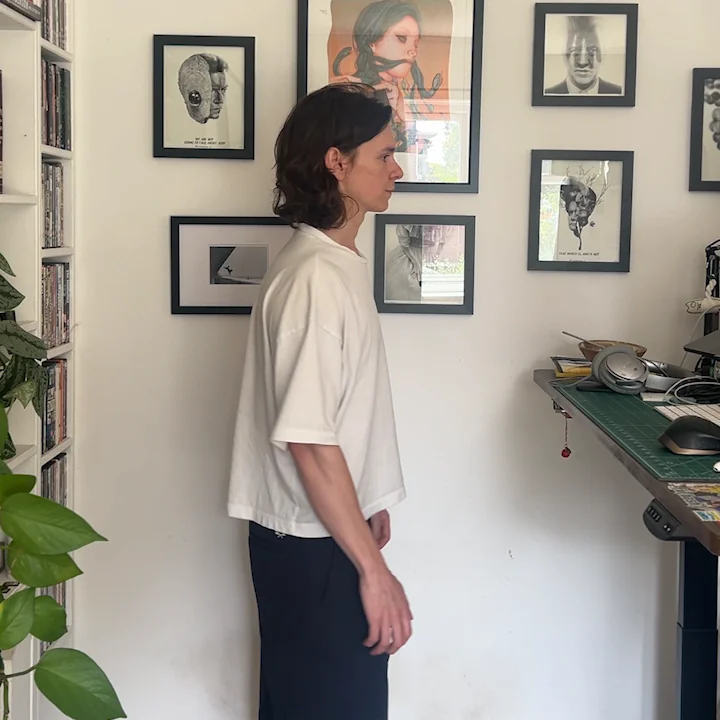
Upscale a video
- SSCAIL-2
Replace a character in a video
- Seedance 2.5
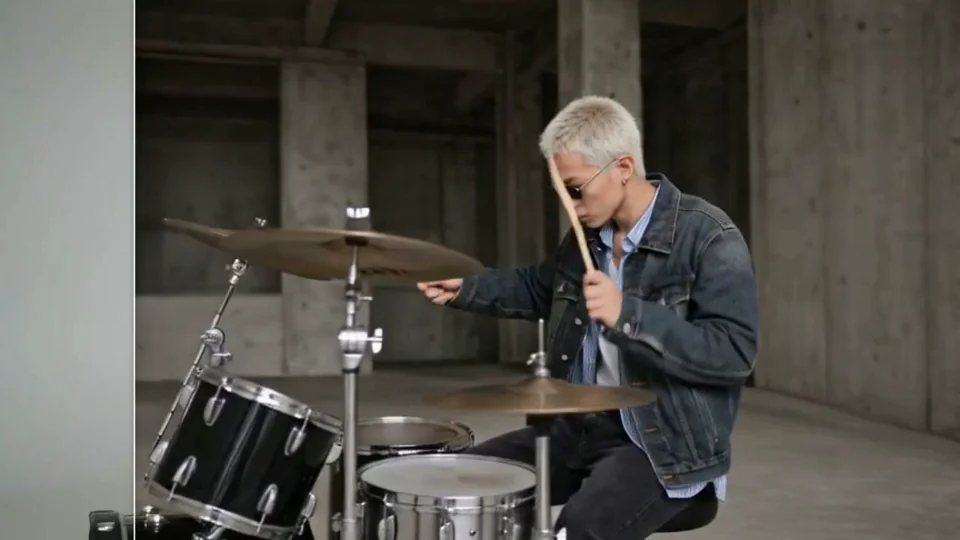
Change a video’s background
- LTX-2.3
Remove an object from a video
- LTX-2.3
Expand a video’s frame
- LTX-2.3
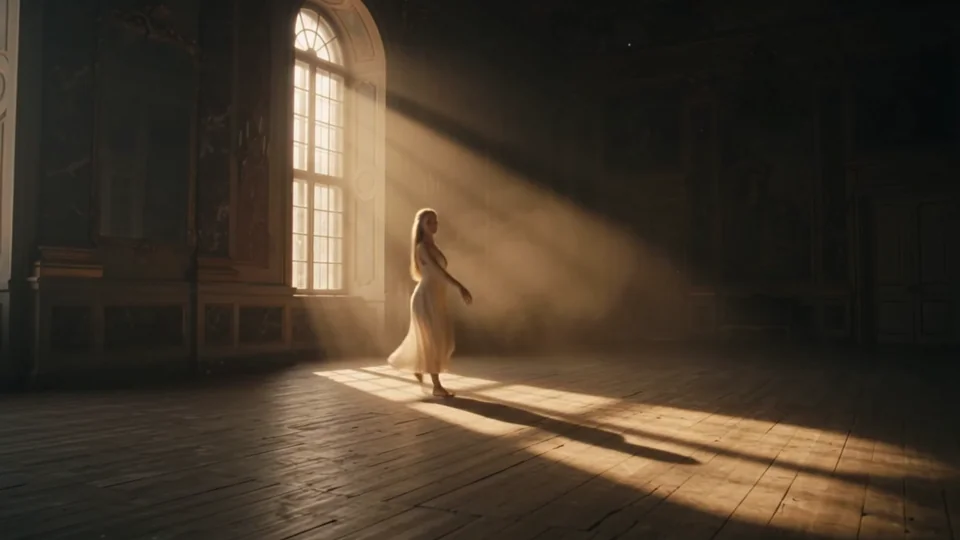
Restore archival footage
- Partner node
AI on the Lot 2026_LTX-2.3_IC LoRA (Union Control)
- Wan2.2, Z-Image-Turbo
AIrt MAchIne
- PPartner node
Beeble SwitchX: Video Edit
- BRIA
Bria: Remove Video Background
- CCapybara
Capybara: Video Edit
- SSAM3, Wan2.1 VACE
Change Any Objects
- PPartner node
Comfy for Advertising - B-Roll Creation
- Partner node
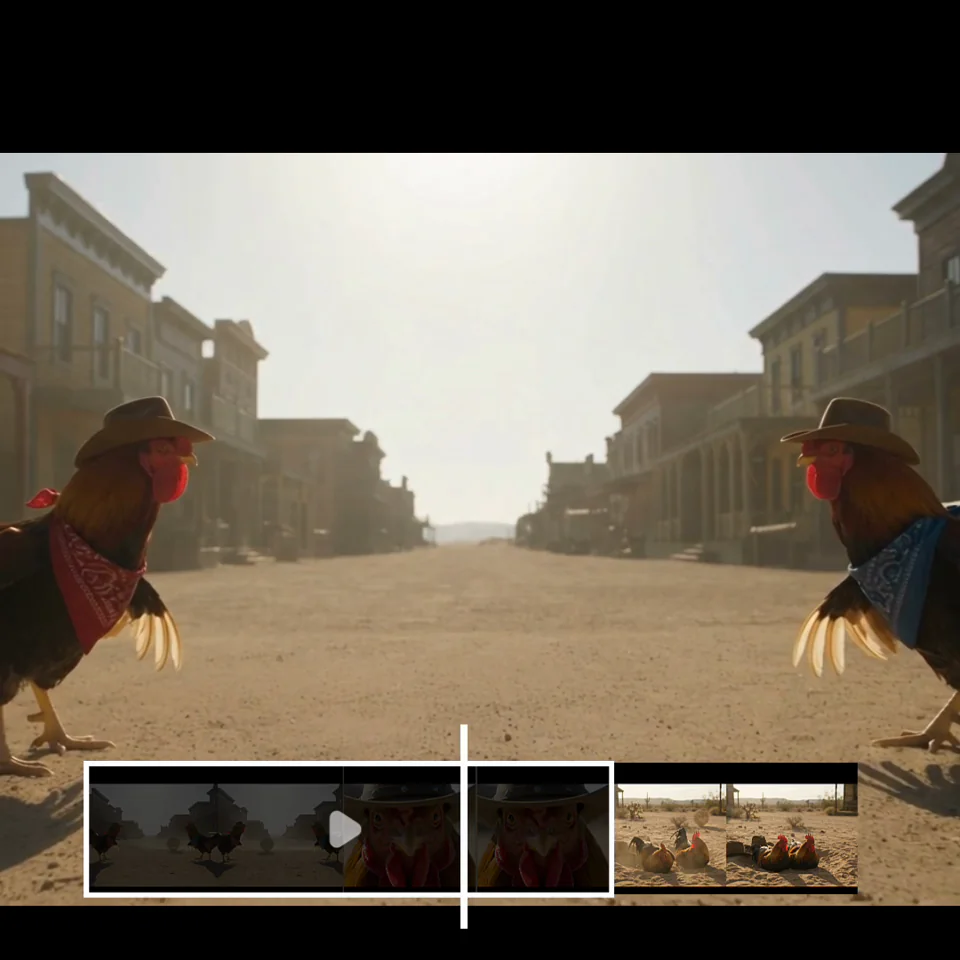
Create seamless transitions with LTX 2.3
- Seedance 2.0
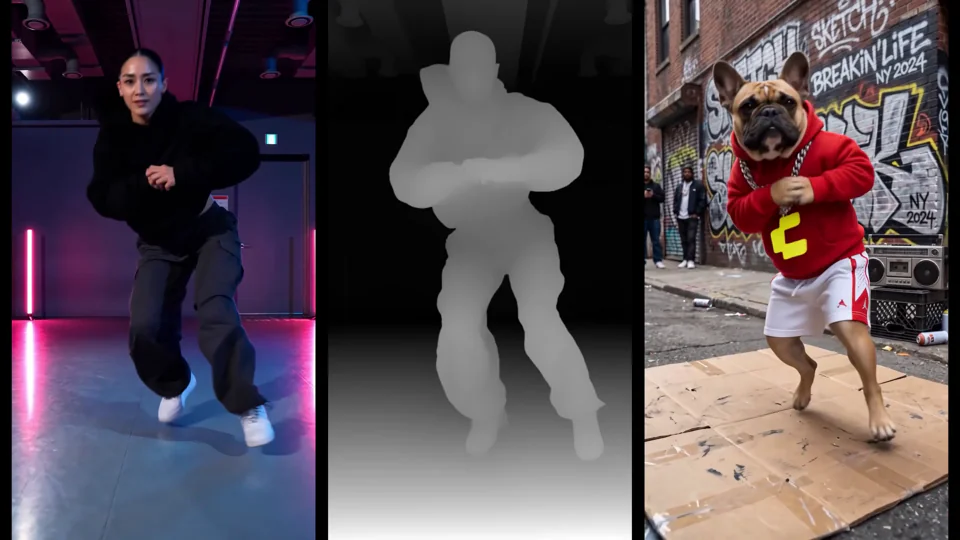
Depth Motion Capture with Seedance 2.0
- RReal-ESRGAN
Fast GAN Video Upscaler
- NNone
Frame Interpolation
- Partner node
Gemini Omni - Outfit Swap
- Partner node
Gemini Omni 1.1 Flash: Text to Video
- Partner node
Gemini Omni 1.1 Flash: Video Edit
- Partner node
Gemini Omni 1.1 Flash: Video Extend
- Partner node
Gemini Omni Flash
- Partner node
Gemini Omni Flash: Video Edit
- LTX-2.3
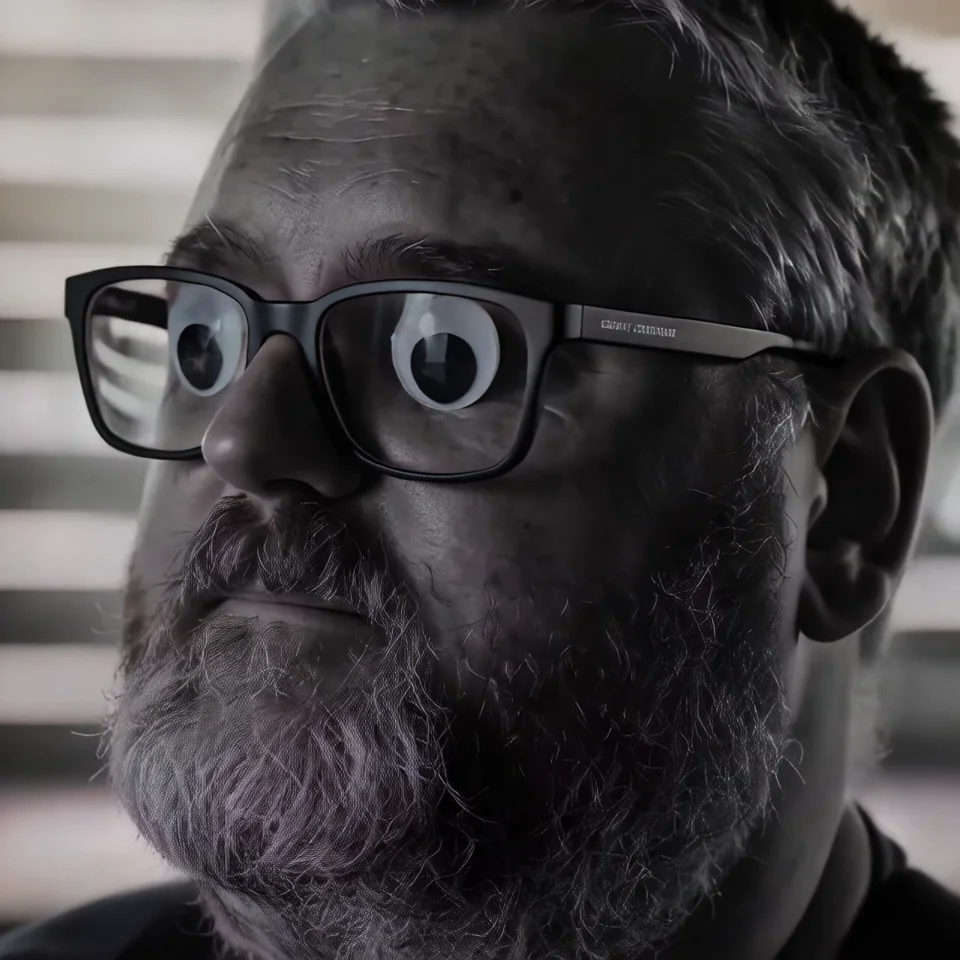
Googly Eyes

VFX and motion transfer
Product, fashion and ads
ControlNet, depth, pose and other tools
Swap faces and characters
All models by provider
148 models
All models by provider
148 modelsBlack Forest Labs
Bria
ByteDance
- Seed Audio 1.0 Multilingual Text-to-Speech
- Seed Audio 1.0 Text-to-Speech
- Seedance 2.0 Fast First-Last Frame
- Seedance 2.0 Fast Reference-to-Video
- Seedance 2.0 Fast Text-to-Video
- Seedance 2.0 Image-to-Video
- Seedance 2.0 Mini Text-to-Video
- Seedance 2.0 Reference-to-Video
- Seedance 2.0 Text-to-Video
- Seedance 2.5 First-Last Frame
- Seedance 2.5 Reference-to-Video
- Seedance 2.5 Text-to-Video
- Seedance 2.5 Video Edit
- Seedream 4.0 Image Edit
- Seedream 4.0 Text-to-Image
- Seedream 4.5 Image Edit
- Seedream 4.5 Text-to-Image
- Seedream 5.0 Lite Image Edit
- Seedream 5.0 Lite Text-to-Image
- Seedream 5.0 Pro Image Edit
- Seedream 5.0 Pro Layer Separation
- Seedream 5.0 Pro Text-to-Image
ElevenLabs
Freepik
- Gemini Omni 1.1 Flash Image-to-Video
- Gemini Omni 1.1 Flash Text-to-Video
- Gemini Omni 1.1 Flash Video Edit
- Gemini Omni Flash Preview Image-to-Video
- Gemini Omni Flash Preview Text-to-Video
- Gemini Omni Flash Preview Video Edit
- Nano Banana 2 Image Edit
- Nano Banana 2 Text-to-Image
- Nano Banana Image Edit
- Nano Banana Pro Image Edit
- Nano Banana Pro Text-to-Image
- Nano Banana Text-to-Image
- Veo 3 First-Last Frame
- Veo 3 Image-to-Video
- Veo 3 Text-to-Video
Kling
Luma
- Luma Photon 1 Image Edit
- Luma Photon 1 Text-to-Image
- Luma Photon Flash 1 Image Edit
- Luma Photon Flash 1 Text-to-Image
- Luma Ray 2 Image-to-Video
- Luma Ray 2 Text-to-Video
- Luma Ray Flash 2 Image-to-Video
- Luma Ray Flash 2 Text-to-Video
- Luma Uni 1 Image Edit
- Luma Uni 1 Max Image Edit
- Luma Uni 1 Max Text-to-Image
- Luma Uni 1 Text-to-Image
OpenAI
Qwen
Recraft
- Recraft V3 Text-to-Image
- Recraft V3 Text-to-Vector
- Recraft V4 Pro Text-to-Image
- Recraft V4 Pro Text-to-Vector
- Recraft V4 Text-to-Image
- Recraft V4 Text-to-Vector
- Recraft V4.1 Pro Text-to-Image
- Recraft V4.1 Pro Text-to-Vector
- Recraft V4.1 Text-to-Image
- Recraft V4.1 Text-to-Vector
- Recraft V4.1 Utility Pro Text-to-Image
- Recraft V4.1 Utility Pro Text-to-Vector
- Recraft V4.1 Utility Text-to-Image
- Recraft V4.1 Utility Text-to-Vector
Runway
Wan
- HappyHorse Reference-to-Video
- HappyHorse Text-to-Video
- HappyHorse Video Edit
- Wan 2.5 Image Edit
- Wan 2.5 Text-to-Image
- Wan 2.6 Image-to-Video
- Wan 2.6 Reference-to-Video
- Wan 2.6 Text-to-Video
- Wan 2.7 Image-to-Video
- Wan 2.7 Reference-to-Video
- Wan 2.7 Text-to-Video
- Wan 2.7 Video Continuation
- Wan 2.7 Video Edit
- Wan 3.0 Image-to-Video
- Wan 3.0 Prime Image-to-Video
- Wan 3.0 Prime Reference-to-Video
- Wan 3.0 Prime Text-to-Video
- Wan 3.0 Reference-to-Video
- Wan 3.0 Text-to-Video
What is a ComfyUI workflow?
A ComfyUI workflow is a graph of nodes that connects AI models, prompts and settings into one process. Each workflow on this page turns an input, such as a text prompt or an image, into a finished result. Open a workflow to see its steps and the models it uses, then run it in your browser.