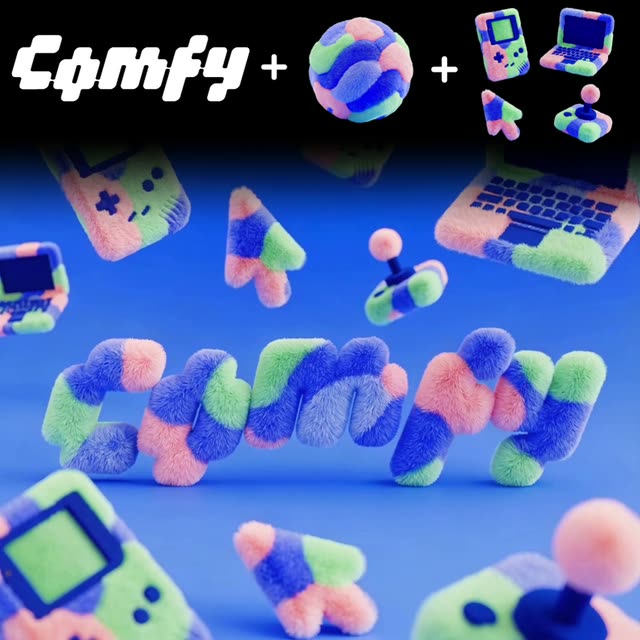
このComfyUIワークフローは、静的なロゴを動的なテクスチャ付き動画資産に変換し、ブランドの存在感を高めるのに最適です。専用ノードやモデルを活用し、ロゴ・テクスチャ・要素をアップロードして統合し、動画出力まで一貫して行えます。まずLoadImageノードでロゴ・テクスチャ・追加要素を読み込み、GeminiImage2Nodeで画像処理・テクスチャ適用を行います。このノードはGemini3 Pro Image Previewモデルを利用し、高品質な画像操作を実現します。
画像準備後、ByteDanceImageToVideoNodeでテクスチャ付きロゴを動画化。ByteDanceモデルの高度な技術で滑らかなトランジションとプロ品質の仕上がりを実現します。SaveVideoノードで完成動画を出力し、必要に応じてSaveImageノードで静止画も保存可能です。動画編集スキルがなくてもブランドデザイナーが魅力的なビジュアルコンテンツを作成できるワークフローです。
API
このワークフローをコードから利用
すべてのComfyワークフローはJSONグラフです。以下のペイロードは、このワークフローそのものであり、ComfyUIが実行する内容と同じです — このURLから取得し、バージョン管理に保存したり、ComfyUIで読み込んでノードごとに実行できます。
Comfy SDKを使ってTypeScriptまたはPythonから実行できます。同じコードでComfy Cloudや自身でホストしたComfyUIのどちらにも対応 — ベースURLだけが異なります。
// Install (beta)
npm i @comfyorg/sdk

// Run "logoにテクスチャと要素" (TypeScript)
import { Comfy } from "@comfyorg/sdk";

const client = new Comfy({ apiKey: "comfyui-..." });

// This workflow, exported in API format (see note below)
const wf = await client.workflows.fromFile("templates-textured_logo_elements_api.json");

const asset = client.assets.fromFile("input.png");
wf.setInput("4", "image", asset);  // LoadImage

const job = await client.run(wf);
await job.getOutputs("13")[0].toFile("output.png");  // SaveImage
SDKはAPI形式のワークフローを受け取ります:このワークフローをComfyUIで開き、「ファイル → ワークフローをエクスポート(API)」を使用してください。
FAQ
よくある質問



















Showing 30 of 30 templates