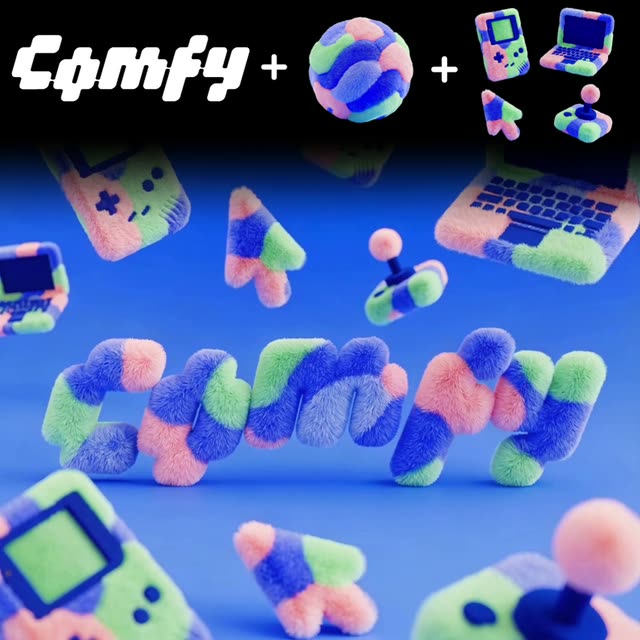
此 ComfyUI 工作流程可將靜態 Logo 轉換為動態、帶有材質效果的影片資產,非常適合提升品牌形象。流程結合多個專用節點與模型,讓使用者上傳 Logo、材質與元素,並將這些素材整合成一支影片。流程從『LoadImage』節點開始,將 Logo、材質與其他元素匯入。接著『GeminiImage2Node』處理這些圖像,將指定材質與元素套用至 Logo,並利用 Gemini3 Pro Image Preview 模型確保高品質圖像處理。
圖像處理完成後,『ByteDanceImageToVideoNode』將帶材質的 Logo 轉換為影片格式,運用 ByteDance 模型的先進技術確保轉場流暢且專業。最後,『SaveVideo』節點輸出完成影片,可直接用於品牌行銷素材。若需靜態圖像,也可用『SaveImage』節點擷取影片畫面。此流程特別適合品牌設計師快速製作吸睛視覺內容,無需繁複影片編輯技能。
API
從程式碼使用此工作流
每個 Comfy 工作流都是一個 JSON 圖。下方的 payload 就是此工作流,與 ComfyUI 執行時完全相同 — 你可以從此 URL 取得、放入版本控制,或在 ComfyUI 載入並逐節點執行。
使用 Comfy SDK 以 TypeScript 或 Python 執行。相同程式碼可用於 Comfy Cloud 或你自架的 ComfyUI — 只需更改 base URL。
// Install (beta)
npm i @comfyorg/sdk

// Run "為 logo 新增紋理元素" (TypeScript)
import { Comfy } from "@comfyorg/sdk";

const client = new Comfy({ apiKey: "comfyui-..." });

// This workflow, exported in API format (see note below)
const wf = await client.workflows.fromFile("templates-textured_logo_elements_api.json");

const asset = client.assets.fromFile("input.png");
wf.setInput("4", "image", asset);  // LoadImage

const job = await client.run(wf);
await job.getOutputs("13")[0].toFile("output.png");  // SaveImage
SDK 需使用 API 格式的工作流:請在 ComfyUI 開啟此工作流,並使用 檔案 → 匯出工作流(API)。
常見問題
常見問題



















Showing 30 of 30 templates