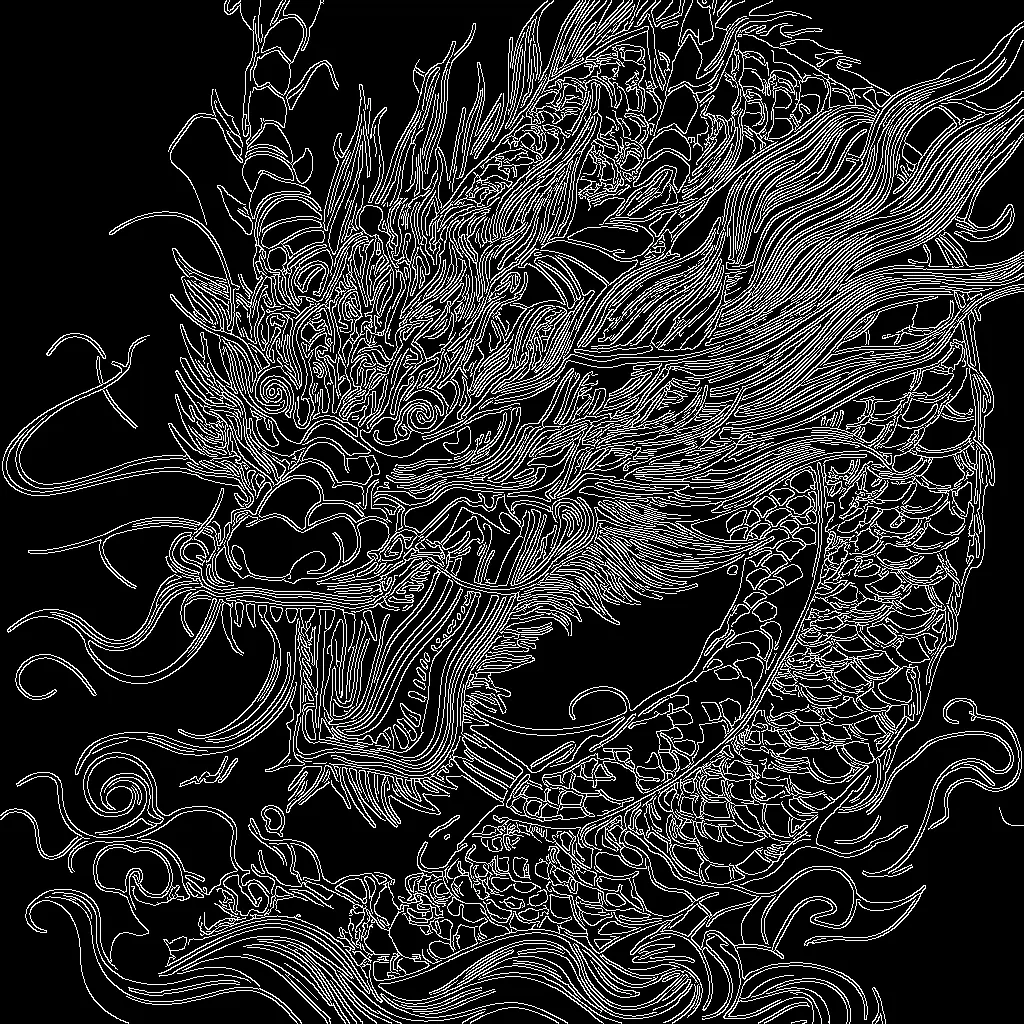

Bu ComfyUI iş akışı, Stability AI’nin SD 3.5 Large modelini ve bir Canny ControlNet’yi kullanarak, giriş görselinin kenar yapısına sadık yeni görseller üretir. Akış, SD 3.5 kontrol noktası (CheckpointLoaderSimple) ve Canny ControlNet (ControlNetLoader) yükler, metin isteminizi kodlar (CLIPTextEncode) ve rehber görselinizden yüksek kontrastlı bir kenar haritası çıkarır (Canny). Kenar haritası, ControlNetApplyAdvanced ile yapısal bir kısıtlama olarak uygulanır; böylece KSampler, ana hatlara sadık kalarak yeni içerik üretir ve isteminizi takip eder.
Teknik olarak, iş akışı hedef çözünürlükte bir latent tuval oluşturur (EmptySD3LatentImage), modeli pozitif isteminiz ve ControlNet kenar rehberliğiyle koşullandırır, negatif istemi ise basitlik için isteğe bağlı olarak sıfırlar (ConditioningZeroOut). Örnekleme (KSampler) sonrası sonuç RGB’ye çözülür (VAEDecode), önizlenir (PreviewImage) ve kaydedilir (SaveImage). ImageScale, Canny kenar haritasını çıktı boyutuna göre hizalamak için kullanılır. Bu yapı, siluetlere veya ürün hatlarına sadık kalmak gibi güçlü kompozisyon kontrolü istediğinizde idealdir; detay, doku ve stili ise SD 3.5 üstlenir.
API
Bu iş akışını koddan kullan
Her Comfy iş akışı bir JSON grafiğidir. Aşağıdaki veri, bu iş akışının tam olarak ComfyUI'da çalıştırıldığı halidir — URL'den alın, sürüm kontrolünde saklayın veya ComfyUI'da yükleyip düğüm düğüm çalıştırın.
Comfy SDK ile TypeScript veya Python'dan çalıştırın. Aynı kod Comfy Cloud veya kendi barındırdığınız bir ComfyUI'ı hedefler — sadece temel URL değişir.
// Install (beta)
npm i @comfyorg/sdk

// Run "SD3.5 Büyük Canny ControlNet" (TypeScript)
import { Comfy } from "@comfyorg/sdk";

const client = new Comfy({ apiKey: "comfyui-..." });

// This workflow, exported in API format (see note below)
const wf = await client.workflows.fromFile("sd3.5_large_canny_controlnet_example_api.json");

const asset = client.assets.fromFile("input.png");
wf.setInput("45", "image", asset);  // LoadImage

wf.setInput("6", "text", "crystal pink dragon on a blue mystery sky, hyperdetailed");  // CLIPTextEncode

const job = await client.run(wf);
await job.getOutputs("9")[0].toFile("output.png");  // SaveImage
SDK, API formatında bir iş akışı alır: bu iş akışını ComfyUI'da açın ve Dosya → İş Akışını Dışa Aktar (API) seçeneğini kullanın.
Comfy Cloud API erişimi, API anahtarı içeren bir plan gerektirir.
SSS


















