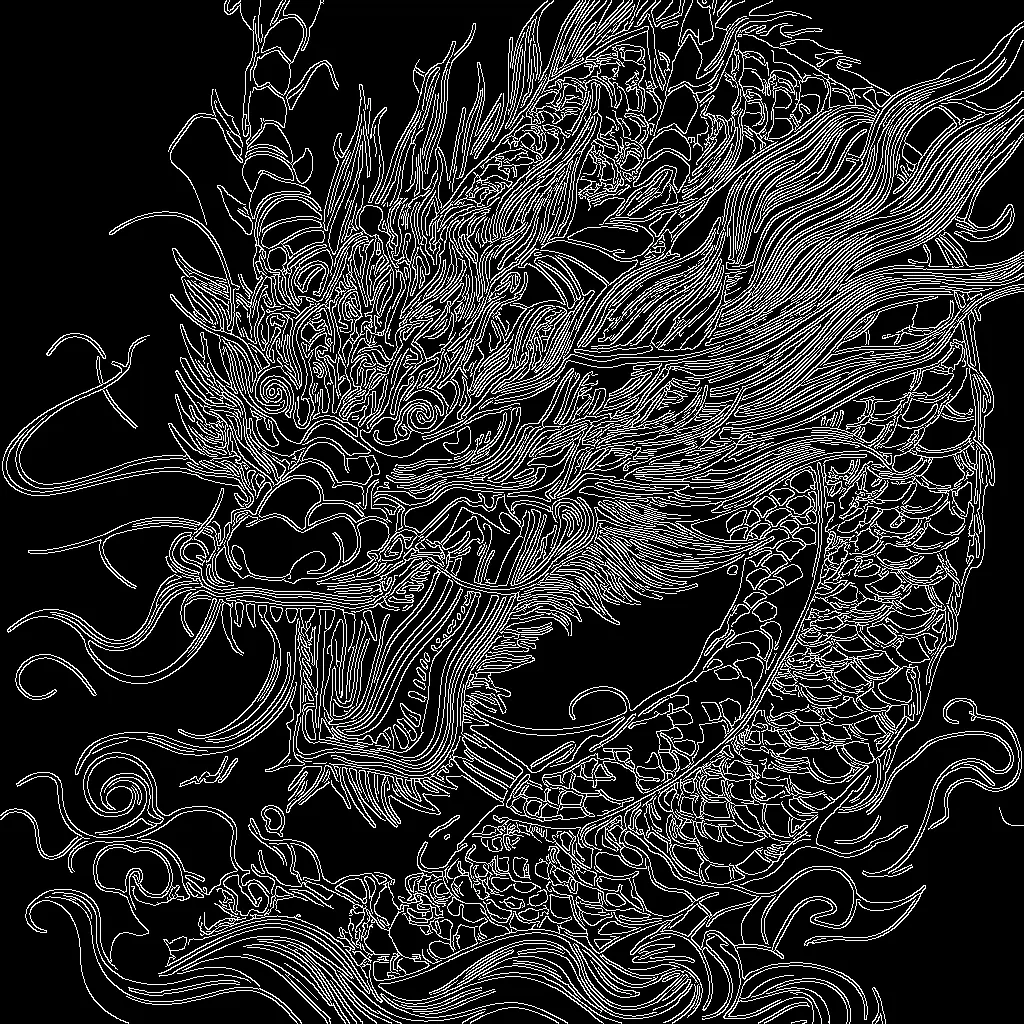

SD3.5 Large Canny ControlNet - After
SD3.5 Large Canny ControlNet - Before

This ComfyUI workflow uses Stability AI’s SD 3.5 Large model with a Canny ControlNet to generate images that follow the structure of an input image’s edges. The pipeline loads the SD 3.5 checkpoint (CheckpointLoaderSimple) and the Canny ControlNet (ControlNetLoader), encodes your text prompt (CLIPTextEncode), and extracts a high-contrast edge map from your guide image (Canny). The edge map is applied as a structural constraint via ControlNetApplyAdvanced so the KSampler can synthesize new content that respects the outlines while still following your prompt.

Technically, the workflow creates a latent canvas at your target resolution (EmptySD3LatentImage), conditions the model with your positive prompt plus the ControlNet edge guidance, and optionally zeroes the negative prompt (ConditioningZeroOut) for simplicity. After sampling (KSampler), the result is decoded to RGB (VAEDecode), previewed (PreviewImage), and saved (SaveImage). ImageScale is included to match the Canny edge map to the chosen output size for consistent alignment. This setup is ideal when you want strong compositional control—like sticking to silhouettes or product contours—while letting SD 3.5 handle detail, texture, and style.

자주 묻는 질문

Increase ControlNetApplyAdvanced weight (e.g., 0.8–1.0) for strong adherence to edges; decrease it (e.g., 0.3–0.6) for looser, more creative outputs. You can also shorten the guidance window (raise start or lower end) to reduce influence during part of the sampling.

Start with a moderate range (e.g., low 80–120, high 160–220). Lower values capture more fine detail but can introduce noise; higher values simplify to bold outlines. Always preview the Canny output and aim for clean, unbroken primary contours.

Yes—consistent results come from matching resolutions. Use ImageScale to resize the Canny edge map to the same width/height as EmptySD3LatentImage so ControlNet conditioning aligns with the sampling canvas.

By default, ConditioningZeroOut supplies an empty negative. To add one, create another CLIPTextEncode with your negative text (e.g., "blurry, low quality"), and connect its output to KSampler’s negative conditioning input.

모든 워크플로우 보기

Seedance 2.0: Reference to Video

ByteDance
ComfyUIComfyUI
Partner Nodes
Image to Video
Video

4K Seedance 2.0 - Reference to Video

PurzPurz
Character
Cinematic
Image to Video
Lip Sync
Multiple Angles
Portrait
Style Reference
Style Transfer
Text to Video
Video Generation
Video
Z-Image-Turbo Text to Image

Z-Image-Turbo Text to Image

ComfyUIComfyUI
Image
Text to Image
Nano Banana 2 Lite: Text to Image

Nano Banana 2 Lite: Text to Image

ComfyUIComfyUI
Partner Nodes
Text to Image
Grok: Image Edit - After
Grok: Image Edit - Before

Grok: Image Edit

ComfyUIComfyUI
Partner Nodes
Image Edit
Nano Banana 2 Lite: Image Edit - After
Nano Banana 2 Lite: Image Edit - Before

Nano Banana 2 Lite: Image Edit

ComfyUIComfyUI
Partner Nodes
Image Edit
Krea-2: Text to Image

Krea-2: Text to Image

ComfyUIComfyUI
Text to Image

Grok: Video generation

ComfyUIComfyUI
Video
Image to Video
Text to Video
Partner Nodes

Seedance2.0 4K: Reference to Video

ComfyUIComfyUI
Partner Nodes
Image to Video
Grok Imagine Image Quality: Generation

Grok Imagine Image Quality: Generation

ComfyUIComfyUI
Text to Image
Partner Nodes

LTX 2.3 - Lipdub LoRA + Voice Clone

RobRob
Audio Editing
Character
Video Edit
Video to Video
Voice Cloning
Text to Audio

1 image input Split Stack - Qwen Multiangle + Wan 2.2

RobRob
Video

Seedance 2.0 Mini: Reference to Video

ComfyUIComfyUI
Partner Nodes
Image to Video

SCAIL-2: Character Replacement

ComfyUIComfyUI
Video Edit
Ideogram v4: Text to Image

Ideogram v4: Text to Image

ComfyUIComfyUI
Text to Image

Googly Eyes

PurzPurz
Video to Video
Video
Video Edit
LoRA

Seedance 2.0 - Viral Videos Character Swap

RobRob
Character Reference
Image to Video
Video to Video
Video Generation
Text Generation

Seedance 2.0 Reference to Video - Concept Art + Stop Motion Style

MintaMinta
Video

Gemini Omni Flash: Image to Video

ComfyUIComfyUI
Image to Video
Nano Banana 2: Image Edit

Nano Banana 2: Image Edit

Google
ComfyUIComfyUI
Partner Nodes
Image Edit
cinematic_annotate_video

cinematic_annotate_video

SirolimSirolim
Video
Video Generation
Image to Video

HappyHorse 1.1: Text to Video

ComfyUIComfyUI
Partner Nodes
Text to Video
Video

HappyHorse 1.1: Image to Video

ComfyUIComfyUI
Image to Video
Video
Partner Nodes

Beeble SwitchX: Video Edit

ComfyUIComfyUI
Image Edit
3x3 Contact Sheet

3x3 Contact Sheet

enigmatic_eenigmatic_e
Image

Restore Archival Footage - LTX 2.3 Dearchive LoRA

RobRob
Video Edit
Video
Video Generation
Video to Video

Gemini Omni Flash: Text to Video

ComfyUIComfyUI
Partner Nodes
Text to Video

Remove Object from Video - LTX 2.3 Obscura Remova LoRA

RobRob
Video Edit
Video
Video to Video

Stylize Video - Frame by Frame - Flux.2 Klein 4b

RobRob
Video Edit
Video to Video
Image Edit
Seedream 5.0 Lite: Image Edit - After
Seedream 5.0 Lite: Image Edit - Before

Seedream 5.0 Lite: Image Edit

ByteDance
ComfyUIComfyUI
Partner Nodes
Image Edit
Showing 30 of 558 templates


















