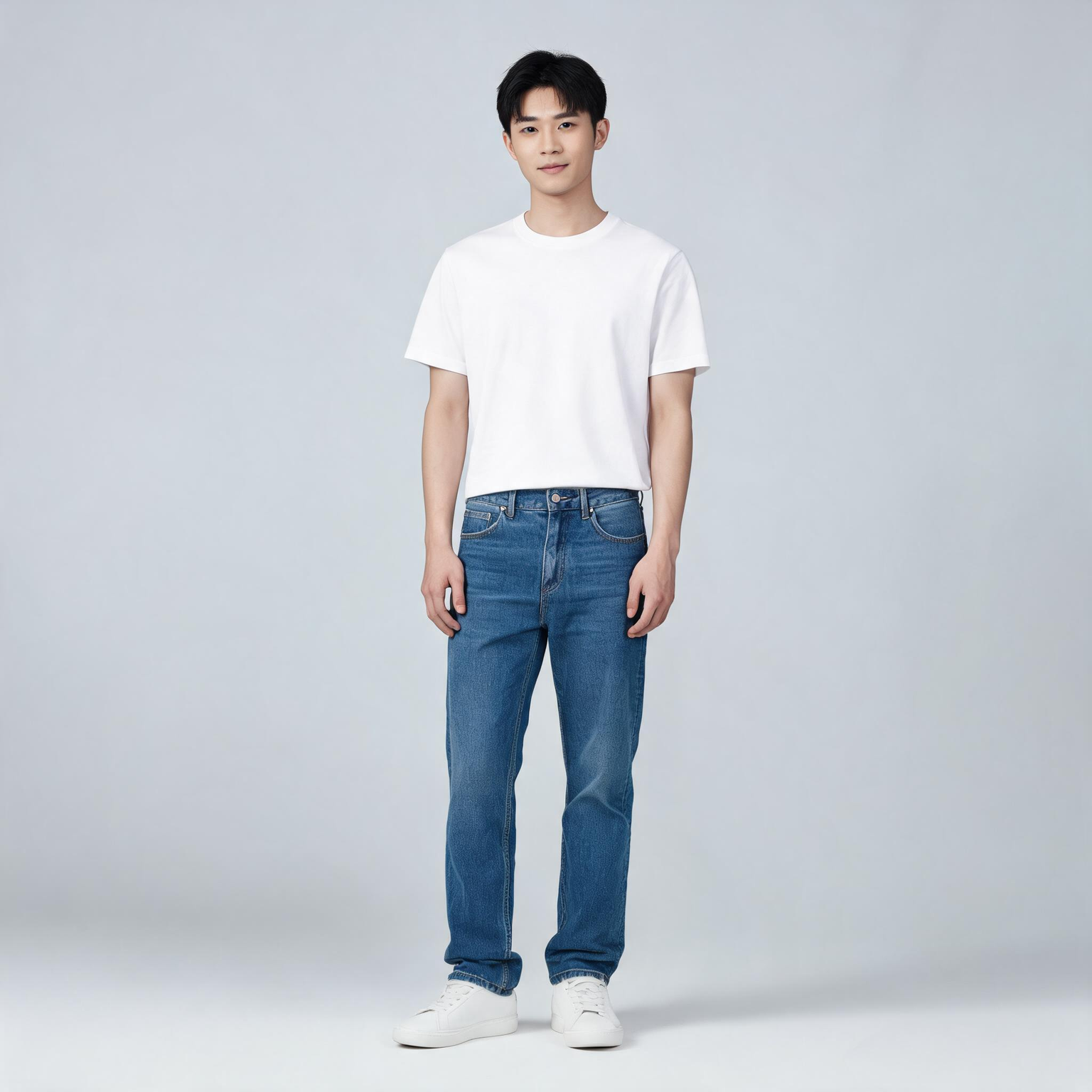
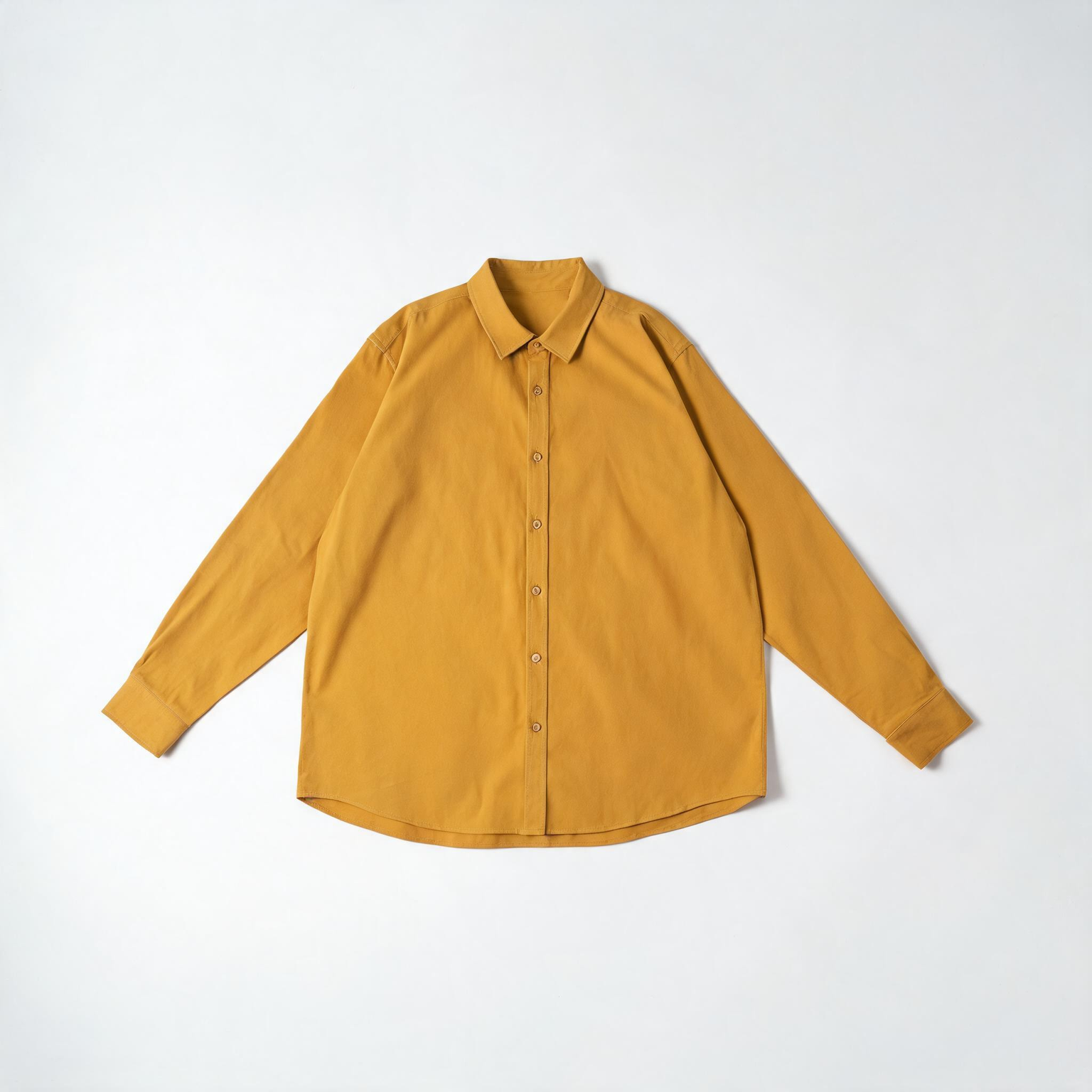
This ComfyUI tutorial shows how to use the BriaVirtualTryOn node (BRIA model) to dress a person in a photo with one to three product images. You feed one person photo and one or more garment or accessory shots through LoadImage nodes, then the BriaVirtualTryOn node sends them to Bria’s API to generate a realistic worn look. The workflow keeps the person’s face, pose, and background intact while refitting the product to the body. Results return at roughly one megapixel, ready to preview, compare, and export.
Under the hood, BriaVirtualTryOn performs body parsing and pose-aware garment warping, then composites the result with occlusion handling so sleeves, collars, and edges look natural around arms and torso. In this workflow, LoadImage nodes provide the inputs, ImageCompare helps you review before/after, and SaveImage writes the final image to disk. Because this node calls Bria’s cloud service, you’ll need a Bria API key, and your images are processed remotely.
API
このワークフローをコードから利用
すべてのComfyワークフローはJSONグラフです。以下のペイロードは、このワークフローそのものであり、ComfyUIが実行する内容と同じです — このURLから取得し、バージョン管理に保存したり、ComfyUIで読み込んでノードごとに実行できます。
Comfy SDKを使ってTypeScriptまたはPythonから実行できます。同じコードでComfy Cloudや自身でホストしたComfyUIのどちらにも対応 — ベースURLだけが異なります。
// Install (beta)
npm i @comfyorg/sdk

// Run this workflow (TypeScript)
import { Comfy } from "@comfyorg/sdk";

const client = new Comfy({ apiKey: "comfyui-..." });
const wf = await client.workflows.fromFile("workflow_api.json");
const job = await client.run(wf);
await job.getOutputs("<output-node-id>")[0].toFile("output.png");
SDKはAPI形式のワークフローを受け取ります:このワークフローをComfyUIで開き、「ファイル → ワークフローをエクスポート(API)」を使用してください。



















