
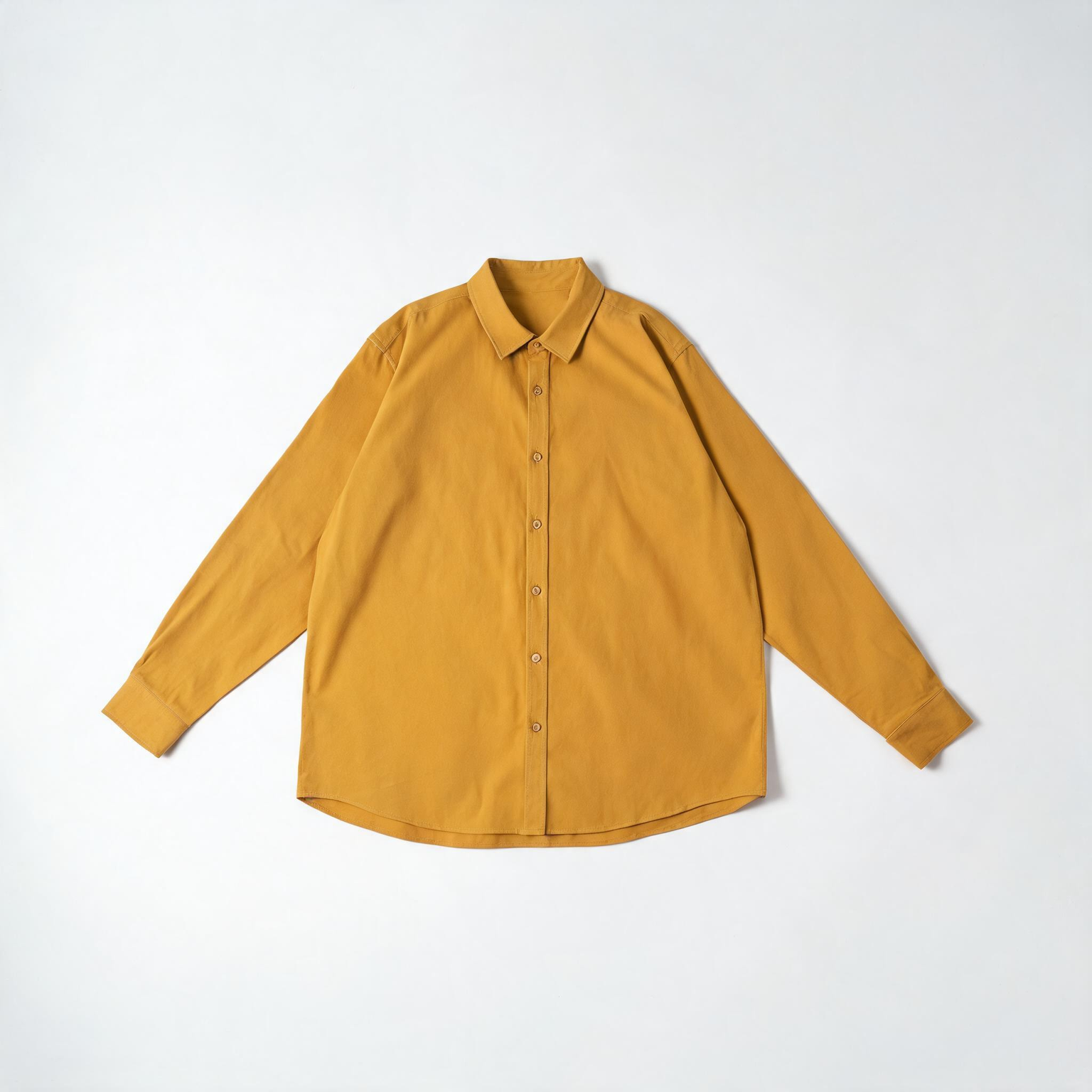
This ComfyUI tutorial shows how to use the BriaVirtualTryOn node (BRIA model) to dress a person in a photo with one to three product images. You feed one person photo and one or more garment or accessory shots through LoadImage nodes, then the BriaVirtualTryOn node sends them to Bria’s API to generate a realistic worn look. The workflow keeps the person’s face, pose, and background intact while refitting the product to the body. Results return at roughly one megapixel, ready to preview, compare, and export.
Under the hood, BriaVirtualTryOn performs body parsing and pose-aware garment warping, then composites the result with occlusion handling so sleeves, collars, and edges look natural around arms and torso. In this workflow, LoadImage nodes provide the inputs, ImageCompare helps you review before/after, and SaveImage writes the final image to disk. Because this node calls Bria’s cloud service, you’ll need a Bria API key, and your images are processed remotely.
API
Use this workflow from code
Every Comfy workflow is a JSON graph. The payload below is this workflow, exactly as ComfyUI runs it — fetch it from the URL, keep it in version control, or load it in ComfyUI and run it node by node.
Run it from TypeScript or Python with the Comfy SDK. The same code targets Comfy Cloud or a ComfyUI you host yourself — only the base URL changes.
// Install (beta)
npm i @comfyorg/sdk

// Run this workflow (TypeScript)
import { Comfy } from "@comfyorg/sdk";

const client = new Comfy({ apiKey: "comfyui-..." });
const wf = await client.workflows.fromFile("workflow_api.json");
const job = await client.run(wf);
await job.getOutputs("<output-node-id>")[0].toFile("output.png");
The SDK takes a workflow in API format: open this workflow in ComfyUI and use File → Export Workflow (API).
Comfy Cloud API access requires a plan with an API key.
FAQ



















