Use Cases
Restore Old Photos Workflows
Repair scratches, recover faded faces, denoise scans, and colorize black-and-white prints with open, editable ComfyUI workflows you run pass by pass.
7 workflows
The workflows
7 Restore Old Photos Workflows





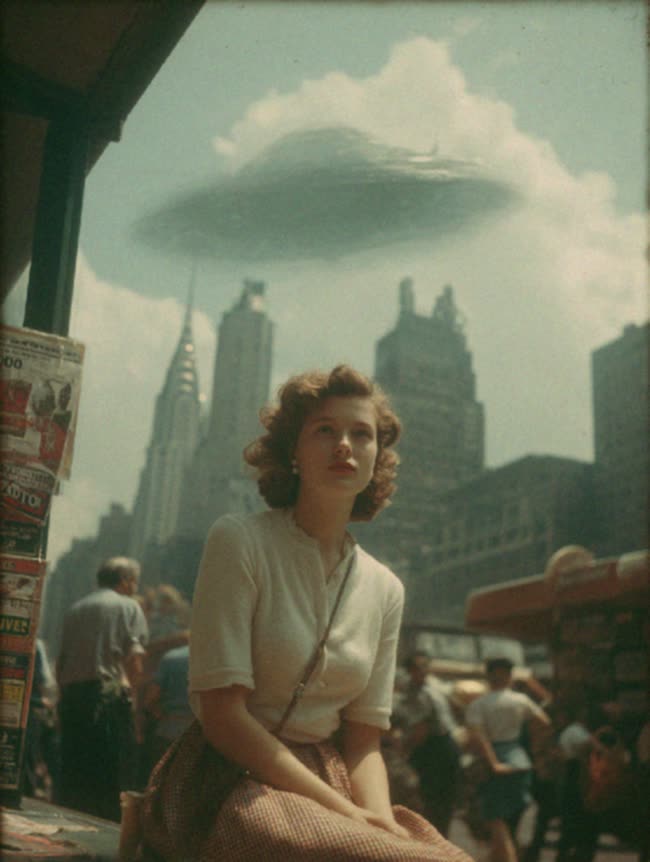



About This Workflow
What is the Restore Old Photos?
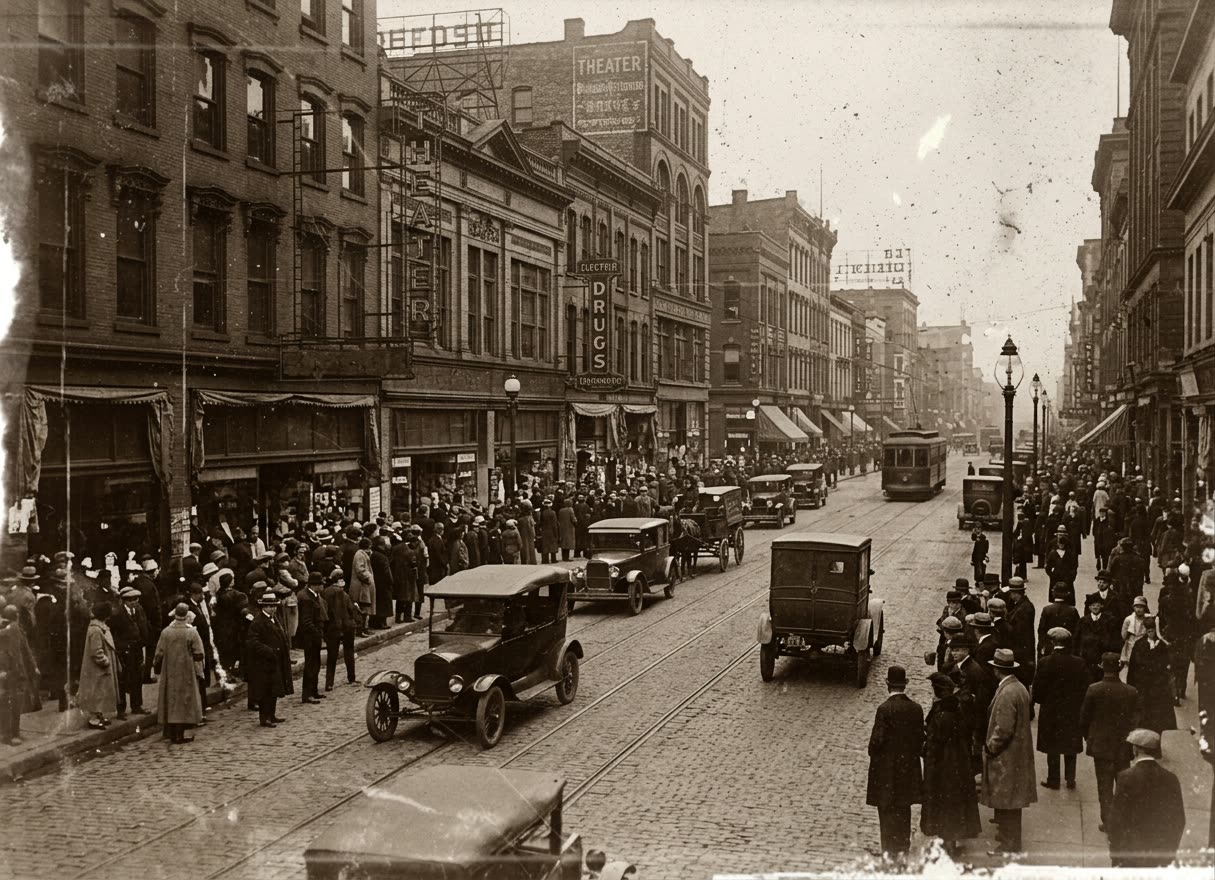
The photo you want to restore old photos from is usually the one that matters most: a creased portrait of a grandparent, a faded wedding print, a torn snapshot that barely survived a move. You scanned it, and now the scratches, the soft faces, and the washed-out color stare back at you. The ComfyUI workflows on this page treat repair as a series of steps you control rather than a single mystery button.
Restoration is really three jobs, and these workflows let you do each one and stop when the picture looks right. Repair handles physical damage: scratches, tears, creases, and the stains a print picks up over decades. Recovery and sharpening bring faded faces back, pulling detail into eyes, hair, and skin so the person reads as themselves again. Denoise and upscale clean grainy, low-resolution scans and enlarge the frame without smearing. SeedVR2 and Recraft handle crisp upscaling, the FaceGen skin-detail workflow rebuilds soft features, and image-edit models like FireRed Image Edit 1.1, Nano Banana Pro, Topaz, and Reve cover repair and enhancement.
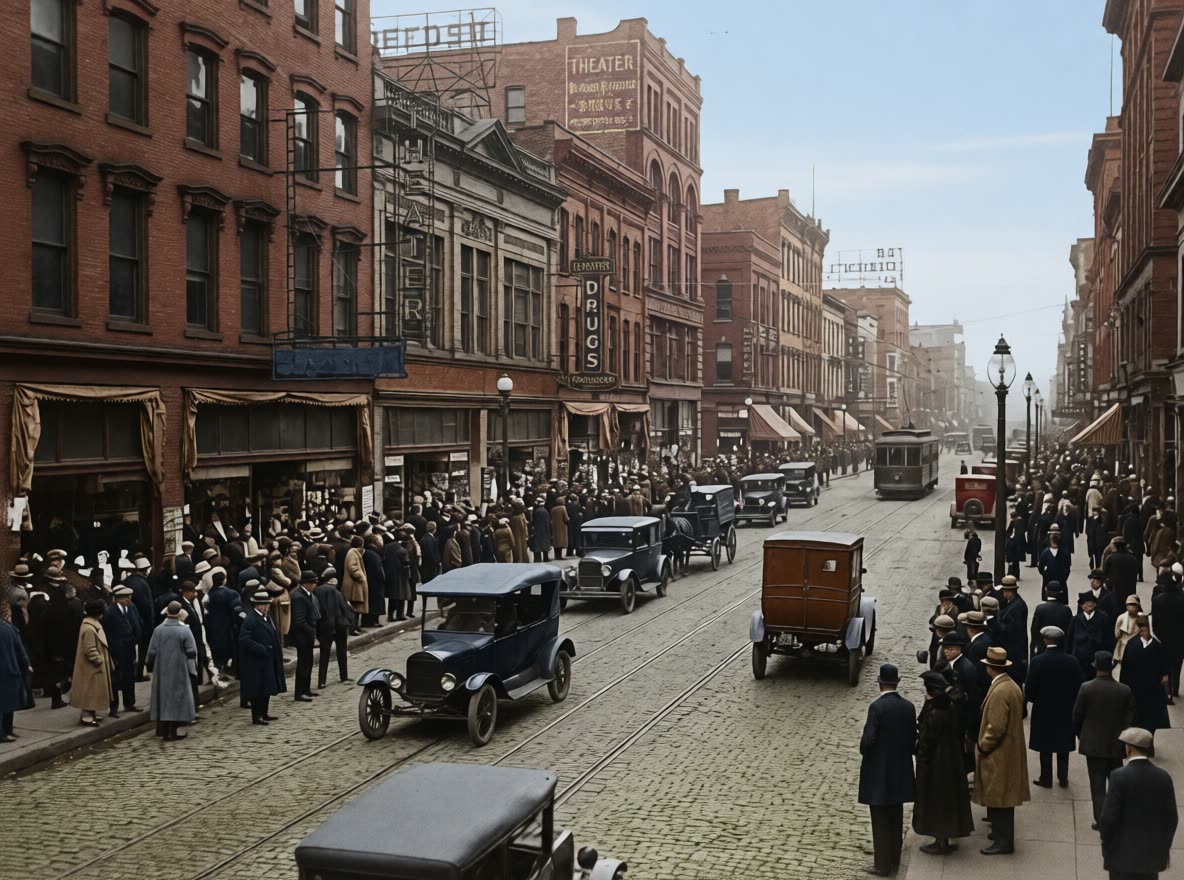
Colorizing a black-and-white photo runs through those same image-edit models. You describe the scene or let the model infer plausible tones, then re-run if a skin tone reads wrong. Because the color pass is separate, you can repair damage first, get a clean grayscale image, and only then add color, which almost always beats doing everything at once.
Be realistic about limits. AI is excellent at faded contrast, light scratches, and grain, and good at faces that still have some structure left. A large tear through a face or heavy water staining forces the model to guess, and a guess can drift toward a generic face that is not quite the person, so run those a few times and expect a little manual touch-up afterward. Every step here is open and editable: you set how hard to push detail, swap the model that suits a given print, and re-run any pass. Work locally in ComfyUI or on Comfy Cloud with no install and no watermark, and you will get far closer to the photo you remember than a one-click app would.

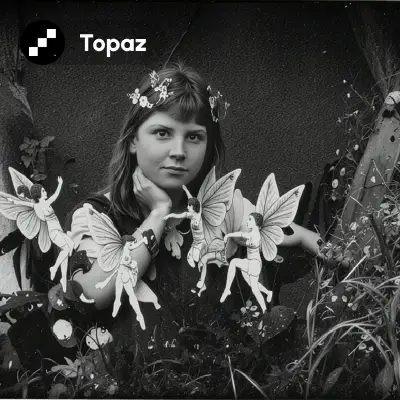

Reproducible, tunable, yours
Every step is exposed and adjustable, and the exact graph is yours to reuse across projects.
Start free. Upgrade when you’re ready.
Capabilities
What You Can Create
Repair damage, recover faded faces, denoise scans, and colorize prints as separate passes you run and stop at will.
Denoise and upscale
Clean grain from old scans and enlarge low-resolution prints crisply with SeedVR2 and Recraft.
Try workflow

Colorize black and white
Add natural color to a grayscale print using image-edit models like Reve or Topaz, then re-run any tone that reads wrong.
Try workflow
Contrast and fade recovery
Pull back washed-out, sun-bleached images so faces and detail return without crushing the highlights.
Try workflow


 WORKS
WORKS
Connect models, processing steps, and outputs on a canvas where every decision is visible and every step is inspectable.
Start from a community template or build from scratch.

Comparison
Why Comfy Workflows
-
Repair pass by pass, not one button
Every node is exposed, so you run damage repair, face recovery, denoise, upscale, and colorize as separate steps and stop the moment the print looks right.
-
Pick your variant and settings
ONLY ONComfyCLOUDSwap between open-weights editors like FireRed Image Edit 1.1 and SeedVR2 upscaling or API models like Nano Banana Pro and Reve, and re-run any pass at a different detail strength.
-
Repair before you colorize
Keeping color as its own pass means you clean scratches and stains first, so tones land on real detail instead of baking flaws in, and you re-run a wrong skin tone alone.
-
No watermark, run it your way
Process the scan locally in ComfyUI on your own GPU or on Comfy Cloud with no install, and download the result at full resolution with no watermark and no per-image charge.
Applications
What people use it for
The repairs people run most on creased, faded, and black-and-white scans.




Frequently Asked Questions
Restore Old Photos FAQ
Keep exploring
Related models and use cases to try next.